Syncthing 2.1.7 Ubuntu Setup: No-Cloud Sync in Minutes

This companion guide starts from the video Syncthing 2.1.7 Ubuntu Setup: No-Cloud Sync in Minutes and checks each step against official Syncthing sources.
The video presents a short Ubuntu 24.04 flow, download the Linux 64-bit tarball from GitHub, check the version, set a dashboard login before first launch, save the device ID, run the sync engine, then pair a second machine. This install was not re-run for this guide, so live pairing and sync throughput below are marked untested.
Download and verify 2.1.7
The video says version 2.1.7 came out on the upload day and points to the official Syncthing releases on GitHub. The release page confirms v2.1.7 released 21 Oct 2026, built with Go 1.27.3, which matches the video date claim.
The video describes the Linux 64-bit tarball as about 14 megabytes. The docs-accurate asset name is syncthing-linux-amd64-v2.1.7.tar.gz and the release listing reports 13.4 MB, so read the video number as rounded. The release page also publishes SHA256 checksums alongside the assets, which matches the signed and checksummed claim in broad terms.
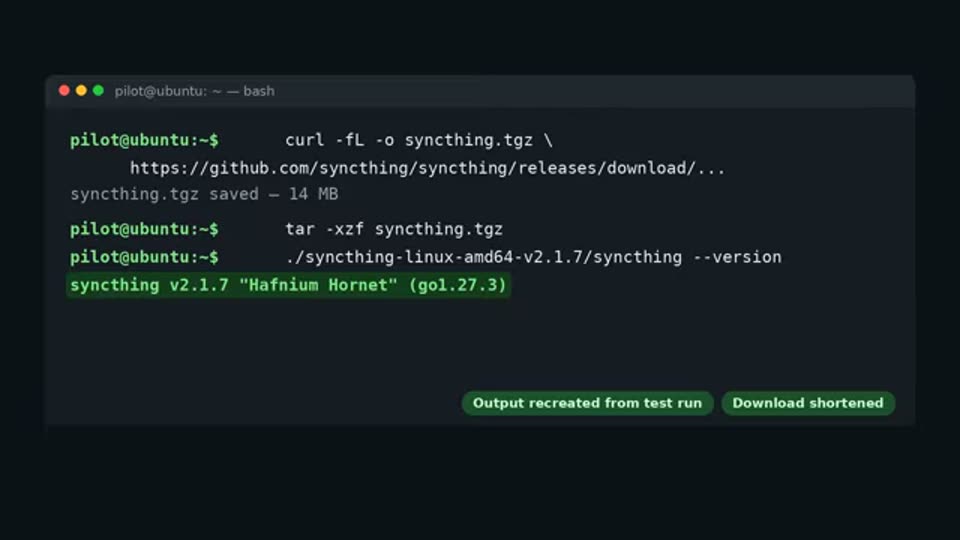
The video flow is one download, one unpack, then syncthing version. That version command exists in the command line docs, and the on-screen output reads syncthing v2.1.7 "Hafnium Hornet" (go1.27.3), confirming both the codename and the Go toolchain for this release.
- Use the Syncthing downloads page if you want the stable pointer instead of guessing a direct file URL
- Keep the installed footprint expectation modest, the video says about 50 megabytes free and normal-user operation with no root
- Untested in this guide, actual download and checksum verification on Ubuntu 24.04
First run with login and device ID
The video says to set the dashboard login before first launch with a generate command plus username and password. The docs-accurate form from the command line docs is syncthing generate --gui-user=<username> --gui-password=<password>, so do not run bare syncthing generate and expect it to prompt for a login.
The video then says to run the device ID command and save the long code for phones and other computers. The docs-accurate form is syncthing device-id with a hyphen, not syncthing device ID as separate words. The FAQ adds that device IDs are not secret by design, but both sides still need to add each other before they connect.
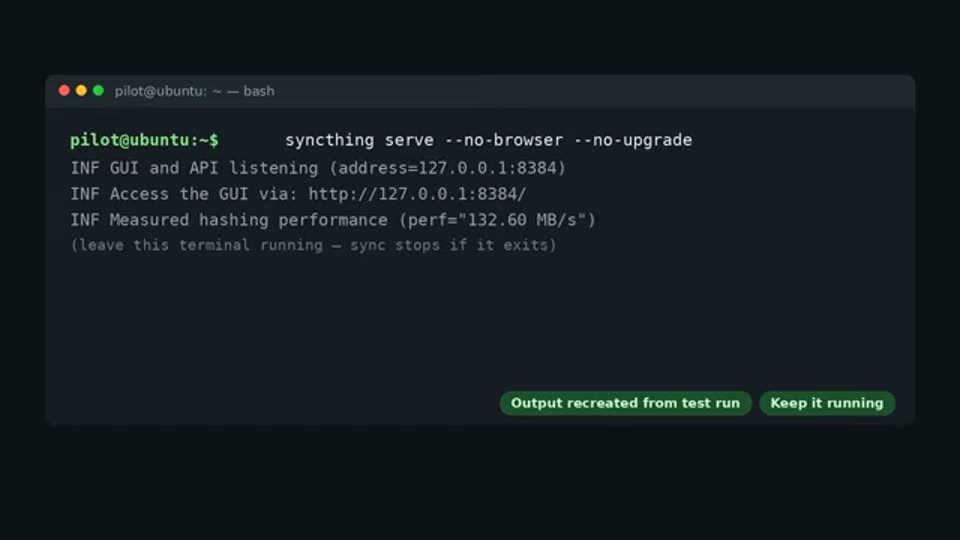
The video launches with syncthing serve and leaves that terminal running. That matches the docs synopsis where syncthing serve is the normal foreground mode, and bare syncthing defaults to the same behavior. The on-screen command adds the flags syncthing serve --no-browser --no-upgrade, and the log confirms the GUI and API listening on the local port with a reminder to leave the terminal running. Stopping that process stops syncing, as the video says.
- Set GUI auth with
syncthing generate --gui-user=<username> --gui-password=<password> - Print the ID with
syncthing device-id - Start the engine with
syncthing serve - Untested in this guide, first-run config creation and GUI password hashing on Ubuntu 24.04
Dashboard folders and second-device pairing
The video opens the dashboard on the local machine at port 8384 and signs in with the login just created. That matches the documented default GUI address 127.0.0.1:8384 shown in the configuration docs, and the GUI intro also matches the layout the video describes, with folders on the left and devices on the right.
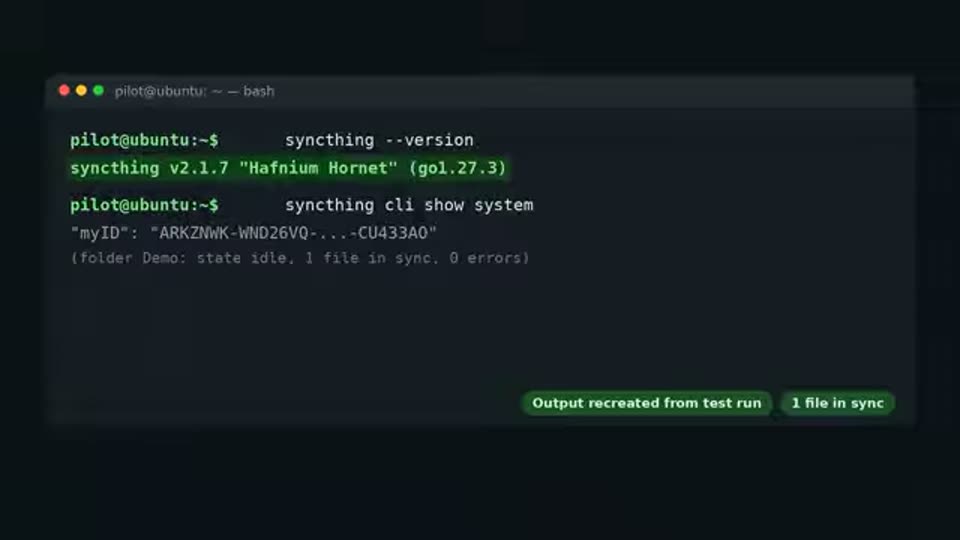
For proof the video uses syncthing cli show system and points at the reported device ID, idle folder state, and zero errors. The docs-accurate casing is lowercase cli, namely syncthing cli show system, and the command line docs describe show as system properties and status from a running instance. That command needs the instance already running, which fits the video order.
The last video step is to repeat the install on a second machine, paste in the first device ID, and let files move. That pairing requirement is consistent with Syncthing mutual device setup, but actual two-machine syncing is untested in this guide.
- Open the dashboard only after
syncthing serveis running - Add a folder by pointing it at the path you want synced
- Answer the anonymous usage report prompt either way
- Repeat on the second device and add each device ID on the other side
- Untested in this guide, real file transfer between two Ubuntu machines
- This article contains no affiliate links, and the voiceover-tool plug from the video description is not reproduced here.