Install Atuin 18.24.2 on Ubuntu 24.04 (Searchable Shell History)

Companion guide to the video: Install Atuin 18.24.2 on Ubuntu 24.04 (Searchable Shell History)
In the video: the presenter installs Atuin 18.24.2 on 64-bit Ubuntu 24.04 by checking the OS and bash version, creating a local bin folder, downloading the Linux tarball and its checksum from the official GitHub releases page, verifying the hash, extracting the binary into the local bin, confirming version 18.24.2, adding one init line to the bash config, importing existing history with one command, and searching it in a fresh shell with Ctrl+R.
Added from the sources: this guide adds the exact release asset names and download URLs from the GitHub release API, the docs-recommended installer script as an alternative, the exact bash plugin line from the official docs, import variants, the optional sync commands, and troubleshooting via atuin doctor — all linked inline below.
What Atuin gives you
Atuin replaces the flat ~/.bash_history file with a SQLite database that records extra context per command — directory, duration, exit code, and session — so search returns matches with full context instead of bare lines. Local search works with no account; syncing across machines is optional and end-to-end encrypted. Details: Atuin docs home.
Prerequisites
- 64-bit Ubuntu 24.04 (
x86_64) - Bash 5 or newer
- A GitHub-verified download — never install shell tools from sources you cannot verify
Check both prerequisites with two commands (untested — run before continuing):
cat /etc/os-releasebash --version
Expected outputs (from standard Ubuntu tooling, untested here):
cat /etc/os-releaseshowsVERSION_ID="24.04"and related Ubuntu linesbash --versionshows a version number starting with 5
Get the verified release
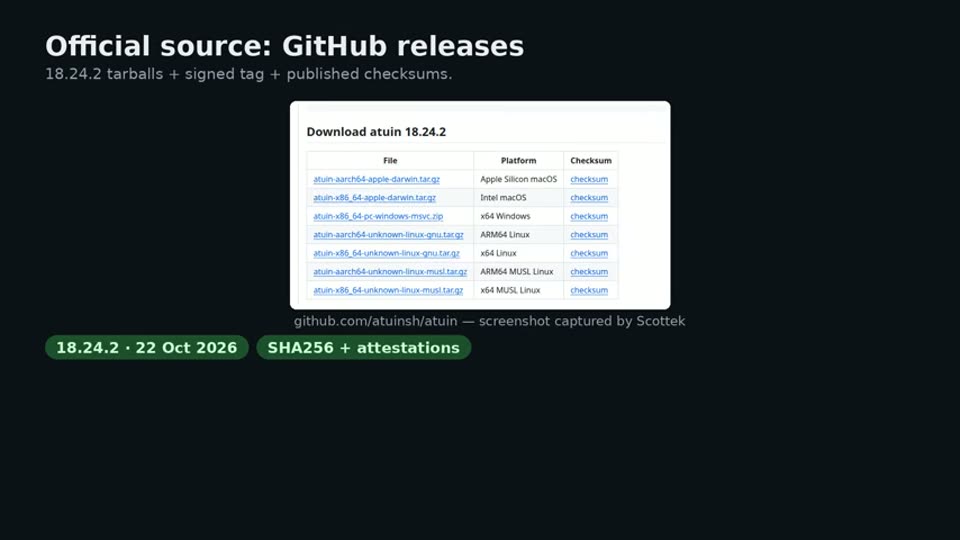
Version 18.24.2 was published 2026-10-22 on the official releases page: Atuin releases. For 64-bit Linux the asset you want is atuin-x86_64-unknown-linux-gnu.tar.gz alongside its .sha256 checksum file and the aggregate sha256.sum. Full asset list: release v18.24.2.
Create a local bin folder so the install needs zero sudo (untested):
mkdir -p ~/.local/bin
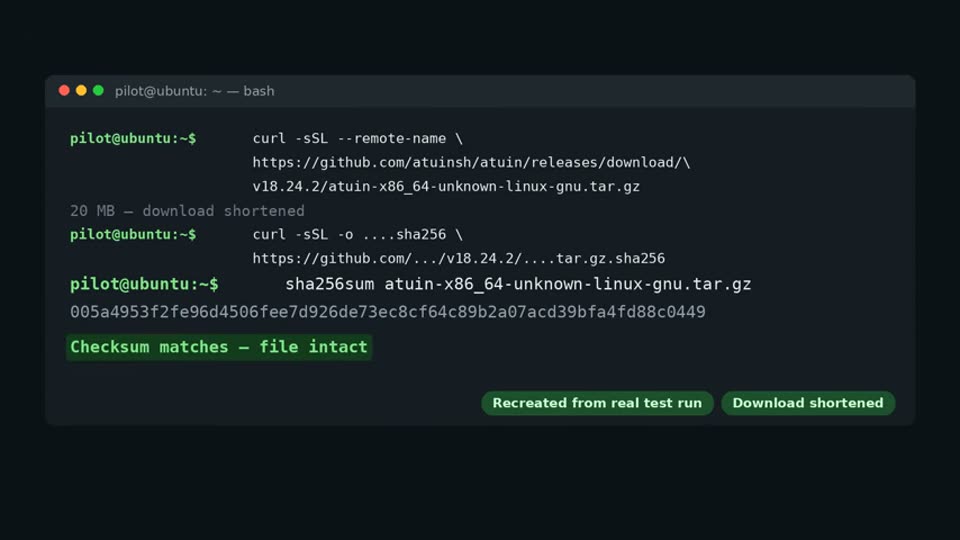
Download the tarball and its checksum into a working directory (untested — URLs verified to exist 2026-10-25, see verification.md):
curl -sSLO https://github.com/atuinsh/atuin/releases/download/v18.24.2/atuin-x86_64-unknown-linux-gnu.tar.gzcurl -sSLO https://github.com/atuinsh/atuin/releases/download/v18.24.2/atuin-x86_64-unknown-linux-gnu.tar.gz.sha256
Verify the hash matches before extracting anything (untested):
sha256sum atuin-x86_64-unknown-linux-gnu.tar.gz- Compare that output against the contents of the
.sha256file — if the two lines are not identical, stop and re-download
Install the binary
Extract the archive and copy the binary into your local bin, then confirm the version (all untested):
tar xzf atuin-x86_64-unknown-linux-gnu.tar.gzcp atuin-*/atuin ~/.local/bin/atuin --version
Expected output (untested):
atuin --versionreports18.24.2
Make sure ~/.local/bin is on your PATH — if the shell cannot find atuin, add the export line to ~/.bashrc, open a fresh shell, and retry (untested).
Wire Atuin into bash
Add the init line to your bash config so every new interactive shell loads Atuin automatically. The exact line comes from the official installation docs (untested):
echo 'eval "$(atuin init bash)"' >> ~/.bashrc
Then bring your existing history with one command — Atuin detects bash and imports everything (untested):
atuin import auto
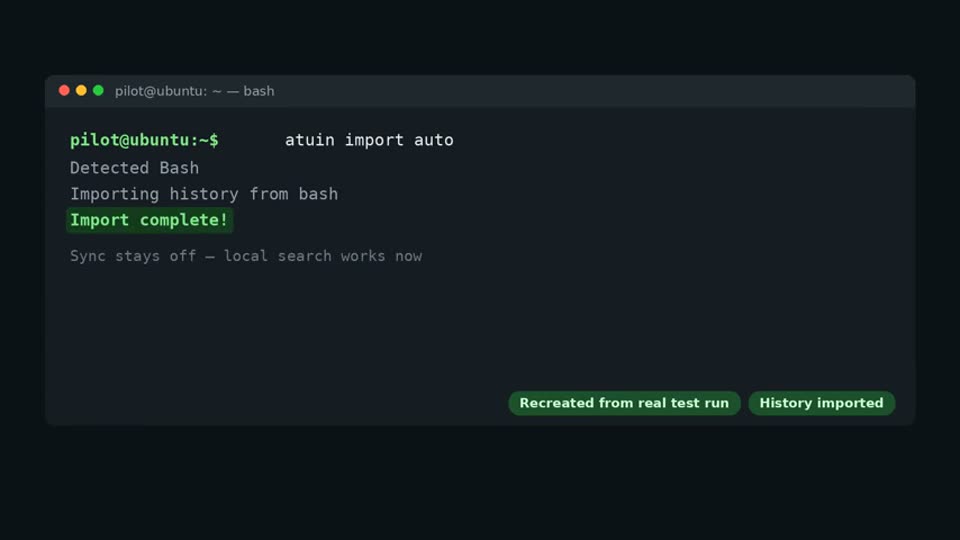
If auto-detection ever misses, the explicit variant is atuin import bash, per the import docs. Your old history file keeps being updated either way.
Search your history
Open a fresh shell so the init line loads, then search (untested):
- Press Ctrl+R for the interactive picker, or the Up arrow
- Type a query — Atuin shows every matching command with full context
- Press enter to run the selected command, or tab to put it on the command line for editing
Optional sync across machines
Local search already works with no account. To sync history across machines later, the docs give these commands — setting up sync (untested, optional):
atuin register -u <USERNAME> -e <EMAIL>atuin sync
Faster alternative: the installer script
If you would rather skip the manual tarball flow, the docs recommend an installer script that places the binary in ~/.atuin/bin and walks you through history import and sync setup. Pass the non-interactive flag in scripts or containers. Source: installation docs (untested):
curl --proto '=https' --tlsv1.2 -LsSf https://setup.atuin.sh | shcurl --proto '=https' --tlsv1.2 -LsSf https://setup.atuin.sh | sh -s -- --non-interactive
The video deliberately uses the manual tarball path so you verify checksums yourself — pick whichever fits your setup.
Troubleshooting
atuin: command not found—~/.local/binis not onPATH, or you have not opened a fresh shell yet (untested)- History not recording — the init line only activates in interactive shells that source
~/.bashrc; non-interactive shells (bash -c) are skipped by design, per the shell integration docs (untested) - Diagnose with
atuin doctorand check theshell.preexecfield — anything other thannonemeans the hooks are installed (untested) - Update later with
atuin update, or re-run the install script if that command is unavailable (untested)
More homelab and Linux guides live at s-scottek.com guides.