Install PcapAnalyzer on Ubuntu: Find Network Faults Fast

Companion video
This guide is the companion to the s-scottek walkthrough Install PcapAnalyzer on Ubuntu: Find Network Faults Fast — a short install video from 2026-11-22 that starts from a clean Ubuntu 24.04 machine and ends with a verified working install. Watch it for the on-screen flow, then use this page as your copy-paste reference.
What the video itself shows is the Docker install path, the ./start.sh run with its one-time token, pasting the token into http://localhost:8080, and the built-in sample capture returning findings. Everything beyond that in this guide comes from the accompanying research and bench notes, and it is marked as such below.
What PcapAnalyzer is
PcapAnalyzer is a free self-hosted capture analyzer for pcap and pcapng files from the PcapAnalyzer repo. You upload a packet capture and it runs 27 built-in network-fault detectors over it, with Wireshark-style views and a PDF report plus an optional AI investigation panel.
The research notes add context the video does not dwell on: the project is open source under Apache-2.0, currently in beta with no git tags, and it ships a demo mode for the AI panel so no API key is needed to try it. The bench run used project commit 665ddd1.
What you need
The video states these prerequisites, and the bench notes agree:
- 64-bit Ubuntu 24.04 with internet access
- Docker Engine plus the compose plugin
- Port
8080free - About
2GBof disk room for the images and build - No accounts and no paid services
Install Docker and fetch the project
The video installs Docker from the official installer, then clones the repo. These are the exact commands from the tested commands file:
- Install base tools with
sudo apt-get updateandsudo apt-get install -y ca-certificates curl git - Fetch the official installer with
curl -fsSL https://get.docker.com -o get-docker.sh - Run it with
sudo sh get-docker.sh - Confirm with
docker --versionanddocker compose version— the bench reported Docker29.10.0and Composev5.8.0 - Clone with
git clone https://github.com/sebaandrada-cell/PcapAnalyzer.gitand enter it withcd PcapAnalyzer
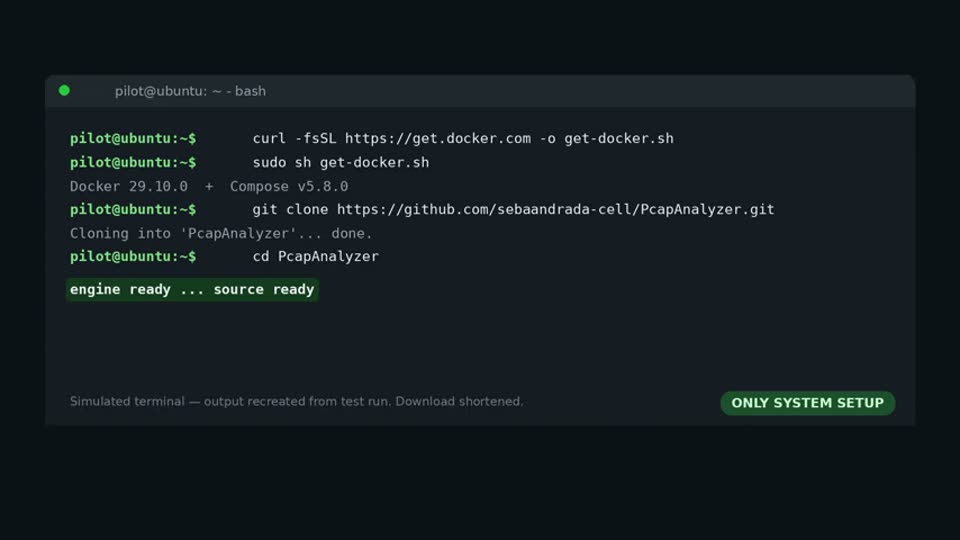
Added from research: if you prefer the manual apt-repo route over the get.docker.com script, both install the same official packages — follow the Docker Engine install docs for Ubuntu instead. That path was documented in the research notes but the script path is the one that actually ran on the bench.
Start it and save the token
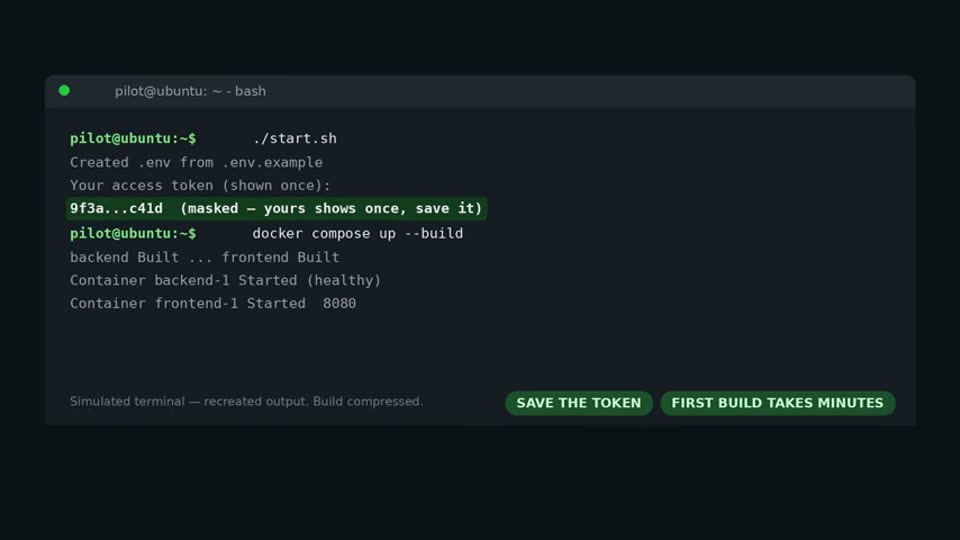
From inside the project folder, run ./start.sh. The script checks Docker, creates your .env from .env.example, and generates a random API token that it prints exactly once — save it. It then builds and starts two containers, which takes a few minutes on the first build.
- Run
./start.shand copy the token it prints - If you lose the token, read it back with
grep API_TOKENS .env - The build runs
docker compose up --buildunder the hood
Prove it on the sample capture
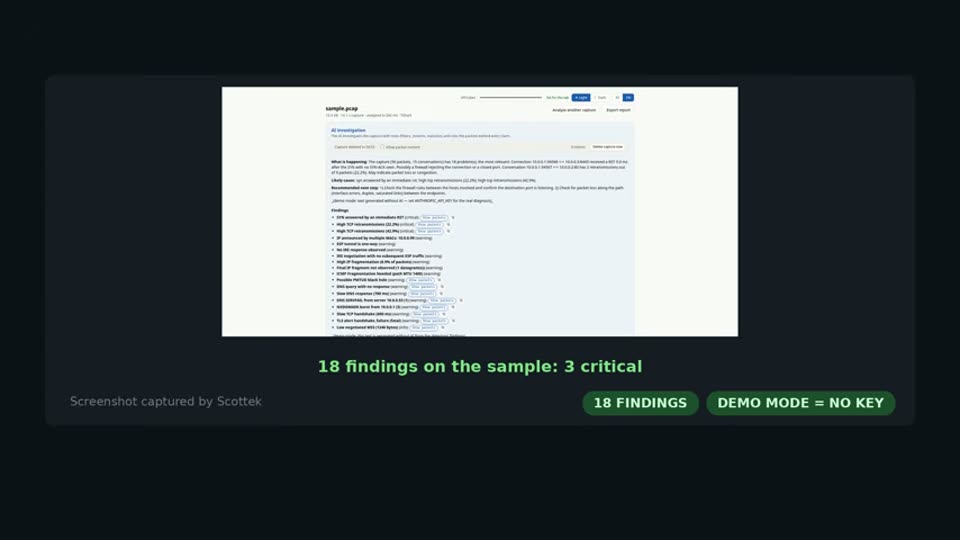
The video verifies the install without needing your own capture file. Open http://localhost:8080, paste your token into the API token field at the top right, and click Try the sample capture. Demo mode investigates for free with no key.
The bench proof behind this step, from the verification notes rather than the video frames: POST /analyze against the shipped sample.pcap returned HTTP 200 with 18 issues — 3 critical, 14 warning, 1 info — across 56 packets and 15 conversations. The headline finding called out in the video is a SYN answered by an immediate RST alongside high TCP retransmissions, with each row citing the packets behind it.
Verify it your way
The video closes with checks that prove the install rather than assuming it. From the project folder:
docker compose psshould show both containers Up, with the backend healthy and the frontend on127.0.0.1:8080curl -s -o /dev/null -w %{http_code} http://localhost:8080/should answer200- Later restarts are
docker compose downanddocker compose up -d
Added from the verification notes: the frontend binds to 127.0.0.1 only by design, which the bench confirmed — localhost-only was not just claimed, it was checked.
Honest limits and untested steps
These steps were not tested on the bench and the video discloses them as not shown — treat them as untested:
- Real AI diagnosis needs your own Anthropic key: set
ANTHROPIC_API_KEYin.envandLLM_DEMO=0, then restart — untested, demo mode was tested instead - Uploading your own capture was not tested — only the shipped sample was analyzed
- Exposing port
8080beyond localhost was not tested — keep127.0.0.1:8080local unless you front it with an authenticated reverse proxy, since the API can spend your AI key - The Windows and macOS paths from the project quickstart were not tested — this guide is Ubuntu-only