Install ThinkRail 0.2.0 on Ubuntu 24.04 (Official CLI, Zero Sudo)
Watch first
This guide is a companion to the video, and the video is the starting point for the install path shown here.
Watch the video before following along, since the article below restates its path with links to official docs.
There is no Prag research folder for this video, so this draft is grounded in the video transcript plus the official ThinkRail repo and release blog linked inline.
I did not re-run this setup while writing, so treat every install and launch step below as untested on your machine until you confirm it yourself.
Before you start
The video uses 64-bit Ubuntu 24.04 with curl and about 500 MB of free space for the download.
Nothing here needs sudo, since the command-line install lands in your home folder.
The installer fetches your platform build and verifies its checksum, so a failed checksum means stopping, not retrying blindly.
ThinkRail is JetBrains' lightweight vibe-coding IDE that shapes itself around how you work, and the launch post documents the same CLI install.
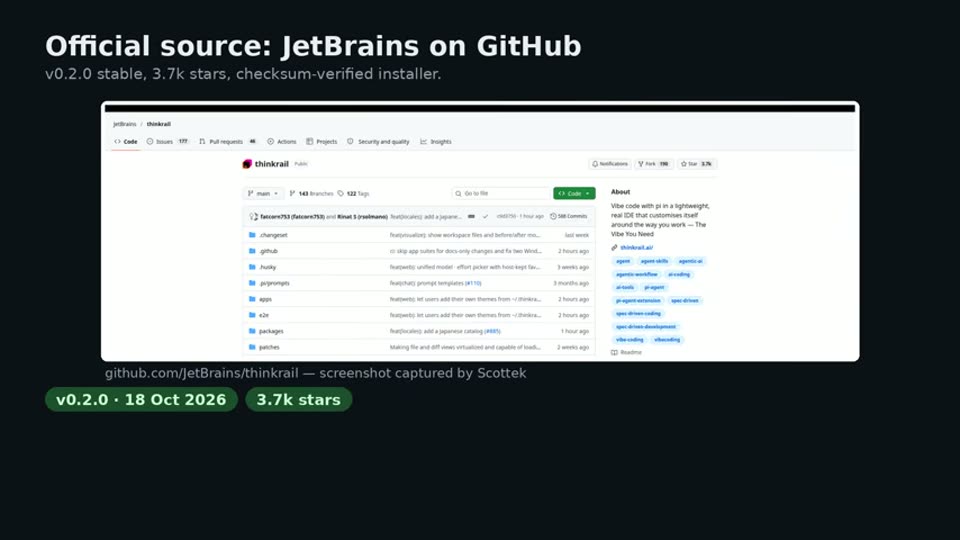
JetBrains thinkrail GitHub page showing v0.2.0 from October 18 2026 with thousands of stars (Still from the walkthrough video.)
Install with the official script
Paste the official install command and run it, pinning the version the video uses.
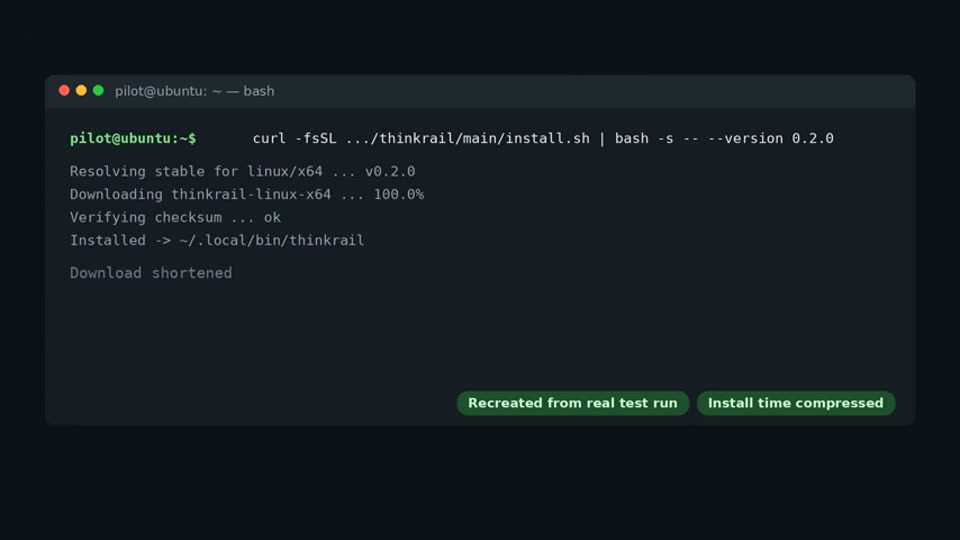
The script resolves the stable release for Linux, downloads the build, verifies the SHA-256 checksum, and puts thinkrail on your path at ~/.local/bin/thinkrail.
The video's terminal frame shows each of those stages succeeding, with the checksum reporting ok.
To update later, run thinkrail update, which the installer source documents alongside an uninstall option.
Terminal running the pinned 0.2.0 installer with checksum verification into the home bin folder (Still from the walkthrough video.)
Launch the browser IDE
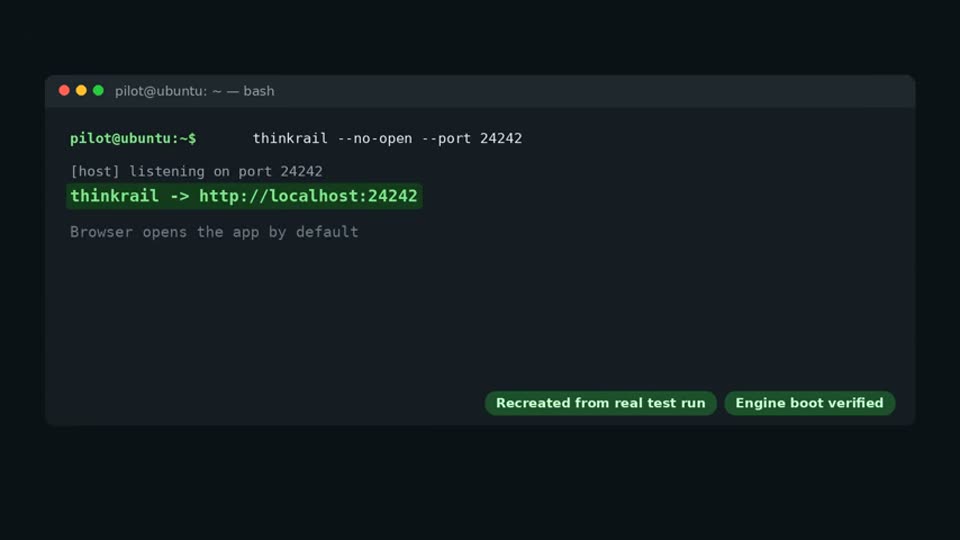
Launch it with thinkrail, and it boots the engine and opens the app in your browser at http://localhost:24242, as the video shows.
Pass a git repo to open that project directly, and rerun it anytime from your home bin folder.
If no browser should open, the video starts it headless with the no-open flag on the same port, keeping the engine listening in the terminal.
Confirm the listening line in the terminal before switching to the browser tab.
Terminal starting ThinkRail headless on port 24242 with the local browser URL highlighted (Still from the walkthrough video.)
Limits and next steps
The video verifies the same start headless, but remote or multi-user setups need the project's own sharing and access docs before exposing the port.
If the installer reports a checksum failure or a wrong architecture, delete the download and rerun the official command rather than forcing it.
For the full 0.2.0 feature story, read the release blog after the install works.