Auto-Skip TV Sponsors: Install iSponsorBlockTV on Ubuntu
This guide is the written companion to the video Auto-Skip TV Sponsors: Install iSponsorBlockTV on Ubuntu (115s, uploaded 2026-11-08), and it treats the video as the starting point. Claims shown in the recording are labeled In the video, and everything confirmed against the project repo, wiki, and package index is labeled Added from the sources. Anything not independently run here is marked untested. Caption fetch for this video returned HTTP 429, so the wording below follows the published video description as the transcript-equivalent. There is no Prag research folder for this video, so the draft is grounded in the video plus the official docs. The voiceover is synthetic narration, and the video presents its steps as simulated terminal cards recreated from a test run, which the frames disclose in-video with a footer line and badge.
In the video: your TV forces sponsors on you, and iSponsorBlockTV skips them automatically on Apple TV, Android TV, Roku, Fire TV, game consoles, and more, using the SponsorBlock database. Added from the sources: iSponsorBlockTV is a self-hosted GPL-3.0 application by dmunozv04 that connects to a YouTube TV app and auto-skips segments such as sponsors and intros via the SponsorBlock API, and can also auto-mute and press the Skip Ad button the moment it appears, per the PyPI 2.11.0 listing.
Check the two prerequisites
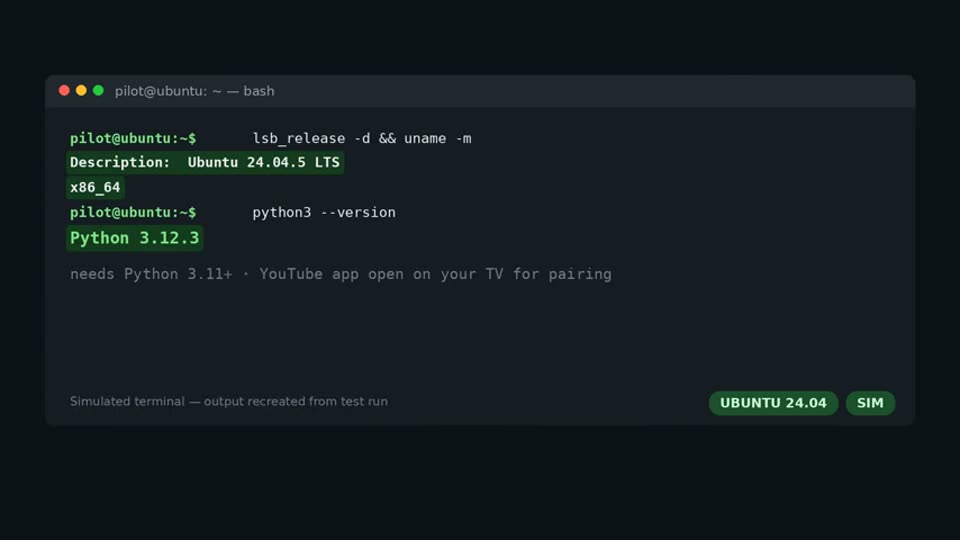
In the video: confirm Ubuntu and Python before installing anything, and open the YouTube app on your TV so it is ready for pairing:
lsb_release -d && uname -mshould report Ubuntu 24.04 with anx86_64machine typepython3 --versionshould print Python 3.11 or newer
Added from the sources: the installation wiki documents PyPI, release-binary, Docker, and from-source paths, and notes the prebuilt release binary needs a newer CPU, which is why this video uses the PyPI build. The PyPI page lists 2.11.0, released 2026-08-21, as current. The pairing step needs the YouTube app open on the TV, and auto-discovery during setup requires the Ubuntu box to be on the same network as the TV, per the PyPI usage notes. These checks are untested on the reader's machine.
Install with pipx and open the setup wizard
In the video: install pipx, then install and inspect the app:
sudo apt updateandsudo apt install pipxget the installer frontendpipx install isponsorblocktvinstalls the app in its own isolated environmentpipx ensurepathmakes sure the install location is onPATHiSponsorBlockTV helpprints the available commands
Added from the sources: the installation wiki confirms pipx install isponsorblocktv as the documented pipx path, alongside a uv tool install isponsorblocktv alternative, and documents two setup entry points: the graphical isponsorblocktv --setup wizard and the text-based isponsorblocktv --setup-cli used in the video. The video's setup-cli and start spellings are video-attributed; the wiki writes the setup flag with dashes, so compare the help output on your own machine before scripting anything. Every command above is video-attributed and untested here.
Pair your TV with the setup wizard
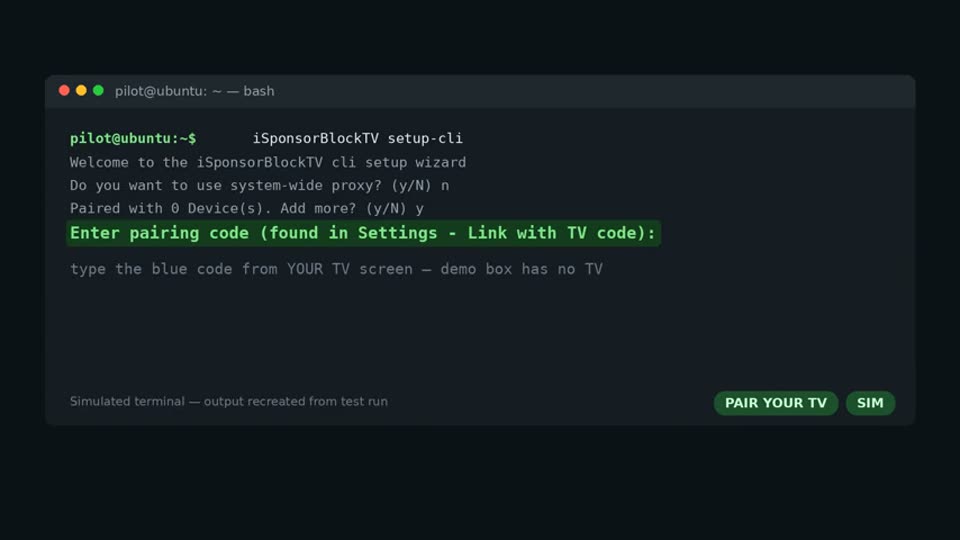
In the video: run iSponsorBlockTV setup-cli, decline the system-wide proxy prompt, choose to add a device when it reports pairing with zero devices, and type the blue code from the TV screen when it asks for the pairing code:
- Answer
nto the system-wide proxy question unless you know you want it - Answer
yto adding a TV, then enter the code shown in the TV YouTube app under Settings minus Link with TV code - The demo box has no TV, so the pairing step itself is shown from the official docs rather than a live TV
Added from the sources: the installation wiki confirms the CLI asks for a TV link code found in the device YouTube app under Settings minus Link with TV code, and the PyPI page confirms a device can instead be added manually with that code when auto-discovery is unavailable. The supported-device list covers Apple TV, Samsung Tizen, LG WebOS, Android TV, Chromecast, Google TV, Roku, Fire TV, CCwGTV, Nintendo Switch, Xbox One and Series, and PlayStation 4 and 5, with two honest limits: ad muting will not work over AirPlay audio to another speaker, and Shorts are only partly supported. If YouTube revoked an old pairing, pair again per the wiki. The pairing flow is video-attributed and untested here.
Launch it, verify, and keep it running
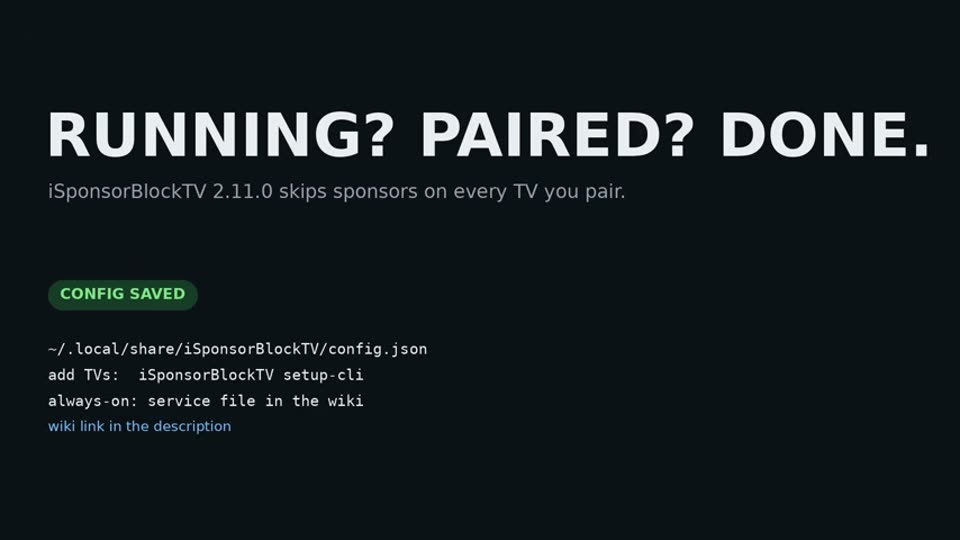
In the video: start the app with iSponsorBlockTV start, confirm it pairs and skips on the TV, and leave it running; the closing card records version 2.11.0, the saved config at ~/.local/share/iSponsorBlockTV/config.json, the iSponsorBlockTV setup-cli re-run for adding more TVs, and the wiki service file for always-on running.
Added from the sources: the installation wiki confirms the run command and documents a systemd unit with restart-on-failure for background running, with a Debian 13 pipx example to adapt, plus Docker Compose and Quadlet paths for container-first boxes. The repo history also carries an August 2026 fix for a blind SSRF in DIAL discovery (CVE-2026-77597), so install fresh from PyPI rather than pinning an old copy. Background running is docs-based and untested here.
Sources and next steps
- The companion video is the starting point for this guide and all In the video claims above
- The iSponsorBlockTV repo owns the GPL-3.0 license, the supported-device list, and the release history
- The installation wiki owns the pipx, uv, Docker, release, and source install paths plus the systemd service example
- The PyPI 2.11.0 listing owns the current version, the August 2026 release date, and the SponsorBlock-API behavior description
- For network-wide ad blocking to pair with per-video sponsor skipping, see Block Every Ad on Your Network: AdGuard Home Setup