Wine 11.22 Ubuntu 24.04 Setup (Official WineHQ Repo)

This companion guide follows the video Wine 11.22 Ubuntu 24.04 Setup (Official WineHQ Repo), an 84-second walkthrough that installs Wine 11.22, the Windows compatibility layer, on Ubuntu 24.04 from the official WineHQ repository and ends with Windows Notepad running on Linux.
This is a companion to that video, not a retest. I did not run this install myself, so every install command below follows the video order and is marked untested where it appears. Anything beyond what the video shows comes from the official WineHQ links at the end and is kept separate from the video claims.
Before you start
Two things to know before the first command. The install downloads near a gigabyte, so give it time. And you will add the i386 32-bit architecture to your 64-bit system, which changes your package sources to include 32-bit libraries.
- You need 64-bit Ubuntu 24.04 (noble),
sudoaccess, and internet. - Confirm your release first:
lsb_release -csmust answernoble.
Enable 32-bit support
Untested here: I did not run this command myself; it follows the video order.
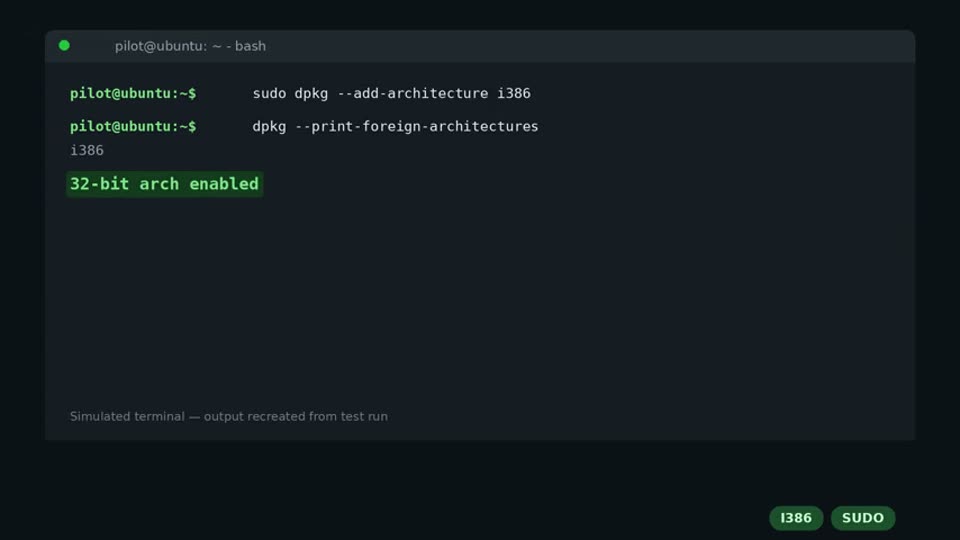
The video enables 32-bit support with sudo dpkg --add-architecture i386, then verifies it by listing foreign architectures and seeing i386 in the answer. Wine needs these 32-bit libraries to run 32-bit Windows apps on a 64-bit system.
Add the WineHQ key and repository
Untested here: I did not run these steps myself; they follow the video order.
The video adds the official WineHQ key to the system keyring (winehq.key), adds the winehq-noble.sources repository entry for Ubuntu 24.04, then refreshes package lists with sudo apt update. For the exact key-download commands, follow the official WineHQ Ubuntu guide rather than copying them from anywhere else.
Install Wine 11.22
Untested here: I did not run this command myself; it follows the video order.
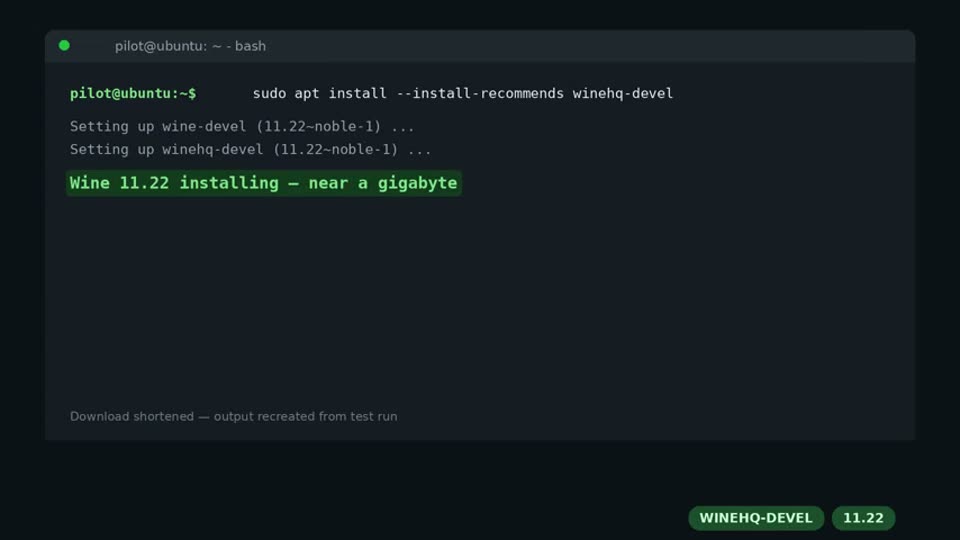
The install command is sudo apt install --install-recommends winehq-devel, which pulls the Wine 11.22 development-branch build for noble plus its recommended dependencies. Expect the near-gigabyte download flagged above.
Verify and configure
Untested here: I did not run these commands myself; they follow the video order.
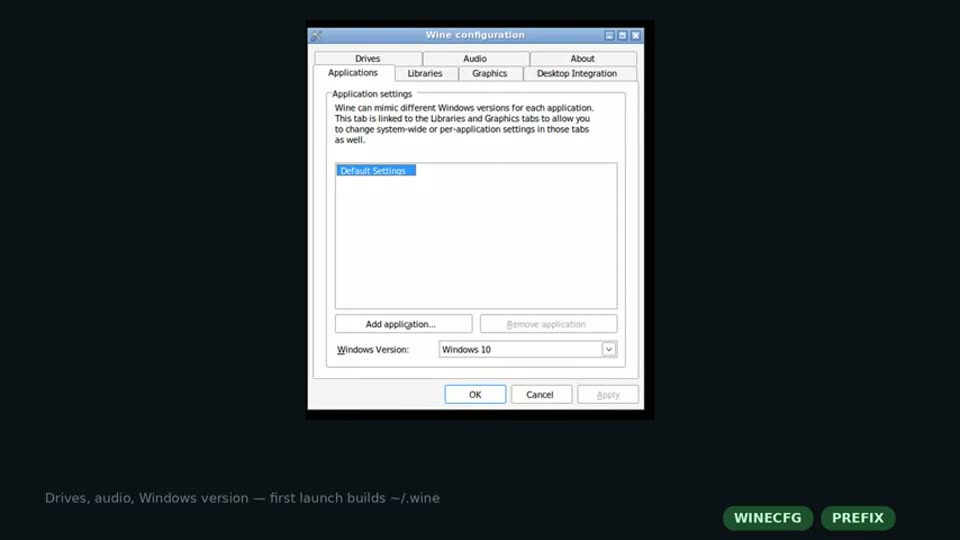
Check the install with wine --version, which should answer wine-11.22. Then run winecfg to configure Wine. The first launch builds your default Wine prefix at ~/.wine, the folder that holds the virtual Windows drive, registry, and settings. The configuration window lets you set the Windows version plus drives, audio, and graphics integration.
Proof it works: Windows Notepad runs
Untested here: I did not run this command myself; it follows the video order.
The video closes the loop with wine notepad, which launches real Windows Notepad on the Ubuntu desktop. That single window is the whole point: a Windows app running on Linux with no Windows license and no virtual machine.
Stable or development branch
The video installs the development branch (winehq-devel), which tracks the newest Wine release. If you prefer the calmer stable branch, install winehq-stable instead of winehq-devel. Before trusting any specific app to Wine, check its rating in the Wine AppDB.
Video chapters and links
The video chapters in order:
- 00:00 Windows apps on Linux
- 00:09 What you need
- 00:17 Enable 32-bit support
- 00:26 Add the WineHQ key and repo
- 00:38 Install Wine 11.22
- 00:47 Verify the version
- 00:54 First launch: winecfg
- 01:04 Proof: Windows Notepad runs
- 01:11 Done
The video notes every command in order is pinned in its first comment. Official references: