Install Aurral 3.0 on Ubuntu: Self-Hosted Music Server

This guide is a companion to the video Install Aurral 3.0 on Ubuntu: Self-Hosted Music Server, which is the starting point for everything here. No lab-test folder exists for this video, so this guide is built from the video description and chapters plus the official Aurral docs and releases page. Claims from the video are labeled as what the video description states, and added research from the docs is labeled separately. Steps that could not be verified against a running install are marked untested.
What the video shows
- The video description states that Aurral 3.0 turns an Ubuntu box into a self-hosted music server with discovery, playlists, lyrics, and Subsonic app support.
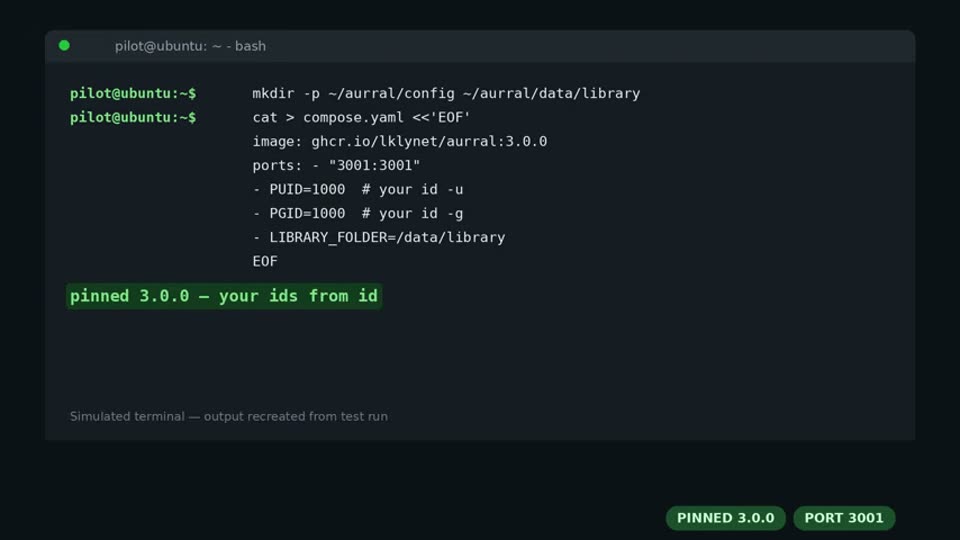
- The described flow is saving a compose file pinned to
3.0.0, pulling and starting the container, opening port3001and finishing the 3-step setup, then running the Settings Status Storage checks. - The description lists chapters covering prerequisites, the compose file, pull and start, a liveness check, the admin account, storage checks, bootstrap proof, and a wrap-up.
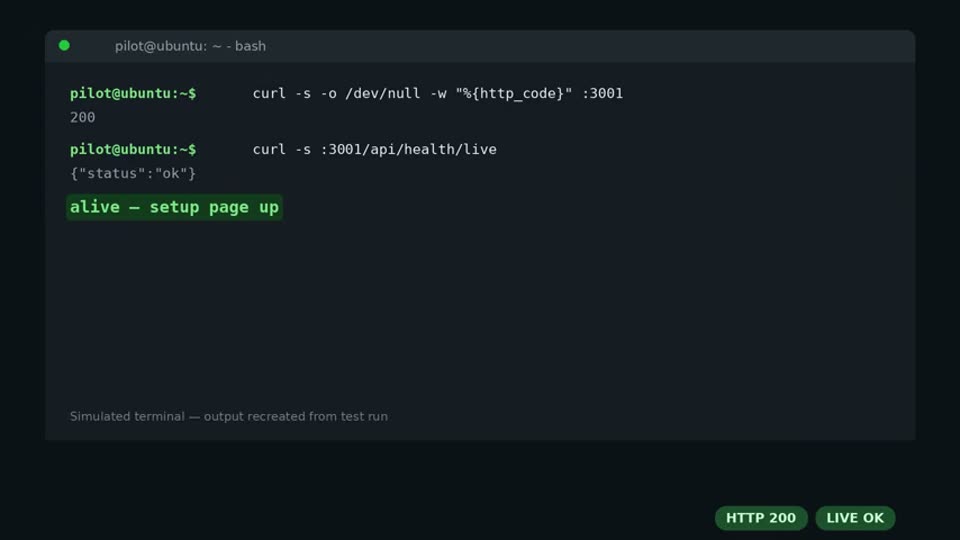
- The stated proof of health is that the setup page answers
HTTP 200,/api/health/livesaysok, and/api/health/bootstrapreports version3.0.0with setup complete. - All of the above comes from the video description and is untested in this guide.
Prerequisites and the compose file
- The video description states what you need: 64-bit Ubuntu 24.04, Docker with Compose v2, about 1 GB of memory free, and port
3001open, with no accounts or subscriptions required. - Added research from the docs: Aurral needs two mounts,
/configfor its database and settings and/datafor music, with the Library folder defaulting to/data/downloads/aurral. - Added research from the docs: the published compose file uses the image
ghcr.io/lklynet/aurral, maps3001:3001, setsPUIDandPGIDto the owner of your music files, and mounts./configand./data. - Added research from the docs: the docs describe exact-version image tags for pinning, so the video's pinned
3.0.0corresponds to a3.0.0tag build, and the releases page listsAurral v3.0.0. - Saving and starting from that pinned compose file is untested in this guide, so follow the Docker setup docs alongside the video.
Start Aurral and create the admin account
- Added research from the docs: start Aurral with
docker compose up -d, then openhttp://localhost:3001in a browser. - The video description states the next move is finishing the 3-step setup, which creates the admin account.
- Added research from the docs: the first-run setup also covers where your music lives, with a choice between reading files in place and importing copies into the Library folder, plus optional listening-history and service connections.
- Added research from the docs: full first-run detail lives in the first-run docs.
- Creating the admin account and completing setup exactly as the video shows it is untested in this guide.
Storage checks and bootstrap proof
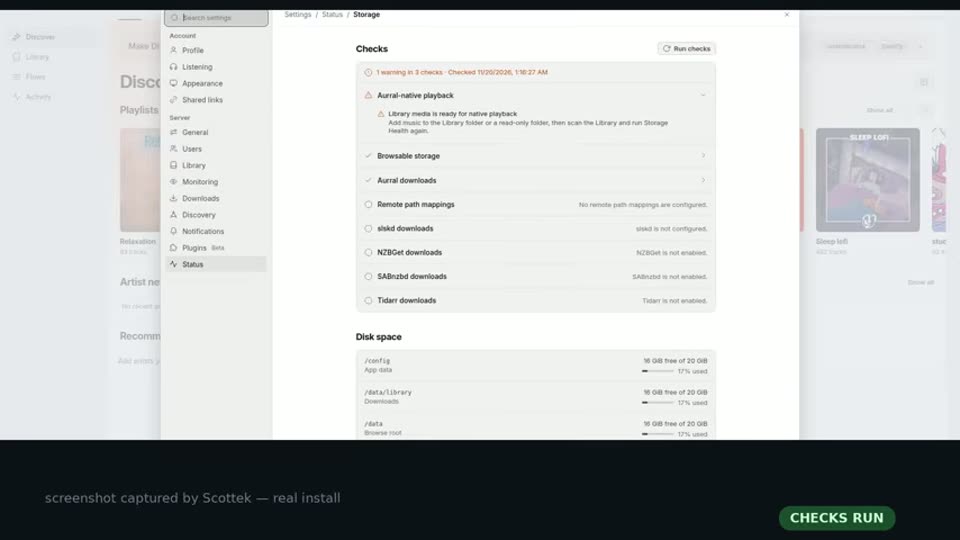
- The video description states the final video steps are running Settings Status Storage checks and proving the server is healthy.
- Added research from the docs: the check lives under Settings Status Storage behind a Run checks action, and it verifies Aurral can read your files and write to the Library folder.
- Added research from the docs: Aurral also serves Subsonic clients at
/restusing an Aurral account. - The video description states the bootstrap proof is the
/api/health/bootstrapresponse reporting version3.0.0with setup complete, alongside/api/health/livesayingok. - Reproducing these checks and health responses is untested in this guide.
Sources
- Install Aurral 3.0 on Ubuntu: Self-Hosted Music Server - the video this guide companions, including its description, chapters, and stated verification steps
- Aurral repository - primary source for the project and its compose file
- Aurral releases - confirms the
v3.0.0release exists - Docker setup docs - compose file, mounts, start command, and image tag scheme
- First-run docs - admin account, music location, storage checks, and service connections
- Aurral site - project home page with the same published compose file
- Aurral docs home - documentation index for the above guides