Proxmox 9.2 LXC vs VM + OCI: Which One Should You Run?

About this guide
This is a companion guide to the walkthrough video at the video page. It expands the video outline into a sourced decision reference with documented commands, honest limits, and further reading.
If Proxmox itself is new, start with the install companion, Proxmox 9: Turn Any PC Into a Homelab Server, then return here to place workloads. Nothing in this guide was run against a live Proxmox host for this draft, so commands are documented paths and performance notes are sourced characterizations marked where they apply.
- Companion scope is decision plus OCI plus 9.2 refresh, not a fresh install walkthrough
- Commands below are documented paths from the linked sources, untested on a live host here
- Performance notes are order-of-magnitude source characterizations, untested here
What a Proxmox VM is
A Proxmox virtual machine is QEMU with KVM acceleration acting as a physical computer in software. The guest sees a virtual motherboard, virtual NICs, and virtual storage controllers, then boots its own kernel from its own disk image. Details are documented in the QEMU KVM wiki.
- Runs unmodified guest operating systems such as Linux, Windows, and BSD because emulated hardware looks like real hardware
- Uses KVM processor extensions when guest and host architectures match, so in Proxmox VE the terms QEMU and KVM are interchangeable
- Recovers speed with paravirtualized virtio devices for disk, network, serial, and SCSI, where the guest cooperates with the hypervisor
- Carries its own kernel plus emulated hardware, reserves memory in blocks, and boots in tens of seconds, untested here and stated as roughly 30 to 60 seconds in community and video sources
- Fits different kernels, kernel modules, nested virtualization, PCIe passthrough, and disk-image appliances
What an LXC container is
An LXC container shares the host kernel and runs an isolated Linux user space above it. There is no emulated hardware and no guest kernel to boot. Management uses the Proxmox Container Toolkit named pct, with isolation from namespaces, limits from cgroups, container views from lxcfs, and guards from AppArmor and seccomp. The model is documented in the Linux Container wiki.
- Runs Linux distributions only, with no Windows and no BSD inside containers
- Starts in about a second with usually negligible runtime cost, untested here
- Plugs into the same cluster, network, storage, firewall, and HA framework as VMs
- Blocks some syscalls and restricts host resource access by design
- Ships traditionally as system containers with a full distro userland and init, plus newer application containers from OCI images as a technology preview
- Must run unprivileged, since a privileged container sits inside the host trust domain
LXC vs VM decision guide
Use these four checks in order. Any single VM answer ends the debate for that workload.
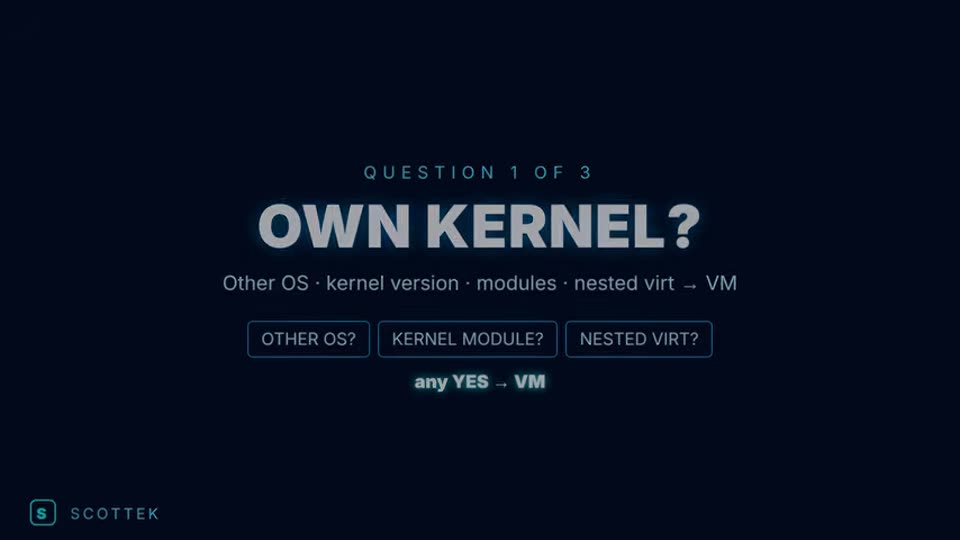
- Own kernel check
- - Needs its own kernel, a specific kernel version, custom kernel modules, kernel tuning, or nested virtualization means VM
- - Shares the host kernel without complaint means LXC stays possible
- Trust and isolation check
- - Runs untrusted code, CI runners, shared shells, server-side user uploads, or neighboring tenants means VM, since KVM is a hardware boundary described as a wall
- - Runs packaged services and code under your control means LXC is fine, since namespaces are a lighter boundary described as a fence
- Hardware and mobility check
- - Needs a dedicated PCIe device such as a GPU, Coral TPU, or HBA means VM with passthrough
- - Needs live migration between nodes without stopping means VM, since container moves are restart moves
- - Ships as a disk image appliance means VM
- Density and operations check
- - Wants many workloads per host, one-second boots, and tiny filesystem-level snapshots means LXC
- - Accepts heavier full-state VM snapshots and per-VM memory blocks for stronger isolation means VM
When to use which in a homelab
Copy this split onto a new node unless a check above forces an exception.
- Put in LXC when all are true, meaning trusted, Linux, and restartable
- - Reverse proxy, Pi-hole or DNS, and monitoring
- - Database, Nextcloud, and media services
- - Small utilities where density and fast rollback matter
- Put in a VM when any are true
- - Windows, BSD, or any non-Linux guest
- - Own kernel, kernel modules, or nested virtualization
- - GPU or other PCIe passthrough
- - Stranger-facing code, multi-tenant use, or live migration needs
- - A Compose stack that should stay intact, run as one roomy Docker-host VM with Proxmox snapshots and backups around it
- Graduate one service from the Docker-host VM to an OCI container only after it earns bare-metal density and fits a single-service image
OCI images as LXC containers
Since Proxmox VE 9.1, released November 19 2025, OCI images can be downloaded from registries or uploaded manually and used as LXC templates, as announced in the Proxmox 9.1 press release. Proxmox converts the image automatically to the LXC stack. The end-to-end command path is shown in the OCI as LXC run guide.
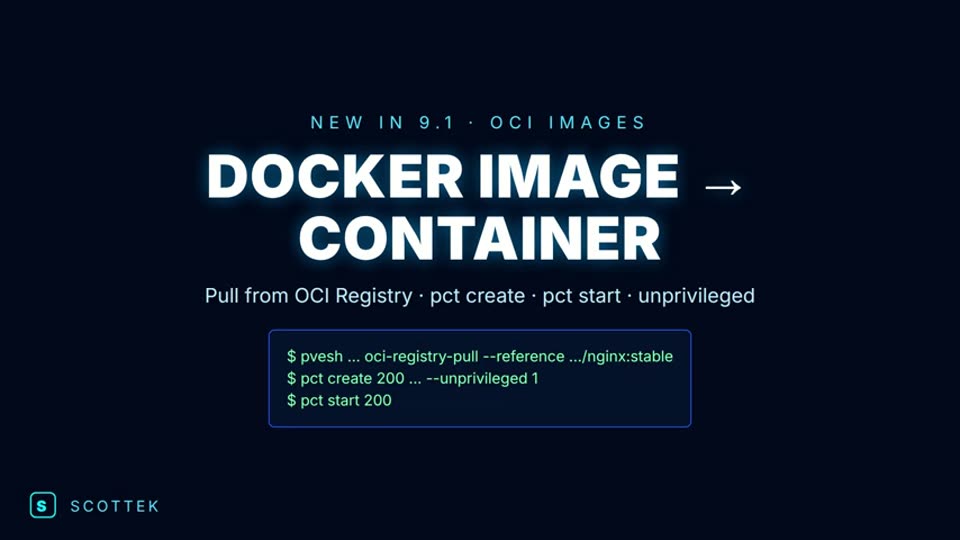
- Pull in the web UI from template storage under CT Templates with Pull from OCI Registry, then Query Tags for entries such as
docker.io/library/nginxand tagstable - Pull from the shell with
pvesh create /nodes/pve/storage/local/oci-registry-pull --reference docker.io/library/nginx:stable, which fetches layers withskopeo, untested here - Create with
pct create 200 local:vztmpl/nginx_stable.tar --hostname nginx-oci --memory 512 --cores 1 --rootfs local-lvm:3 --net0 name=eth0,bridge=vmbr0,ip=dhcp --unprivileged 1, untested here - Inspect imported metadata with
cat /etc/pve/lxc/200.confforentrypoint,lxc.environment.runtime, andlxc.signal.halt, then start withpct start 200 - Expect host-managed networking with its own bridge address on
vmbr0and direct service ports, not Docker port publishing - Expect a system container to be fully supported with init, and a lean single-service application container such as
nginxorMosquittoto run the image entrypoint as the main process with no init and no login shell, still marked technology preview - Edit image environment under Options plus Environment in the UI, reach the shell with
pct execorpct enter, and keep persistent data on--mp0or a bind mount because the rootfs is disposable - Require template storage with content type
vztmplplus outbound HTTPS to the registry - Translate Docker habits into Proxmox terms because there is no Docker Engine, no Compose files, and no Docker API, so tools expecting a Docker socket do not attach
Migration and day-two cautions
Migration behavior is the most expensive surprise, so confirm it before building.
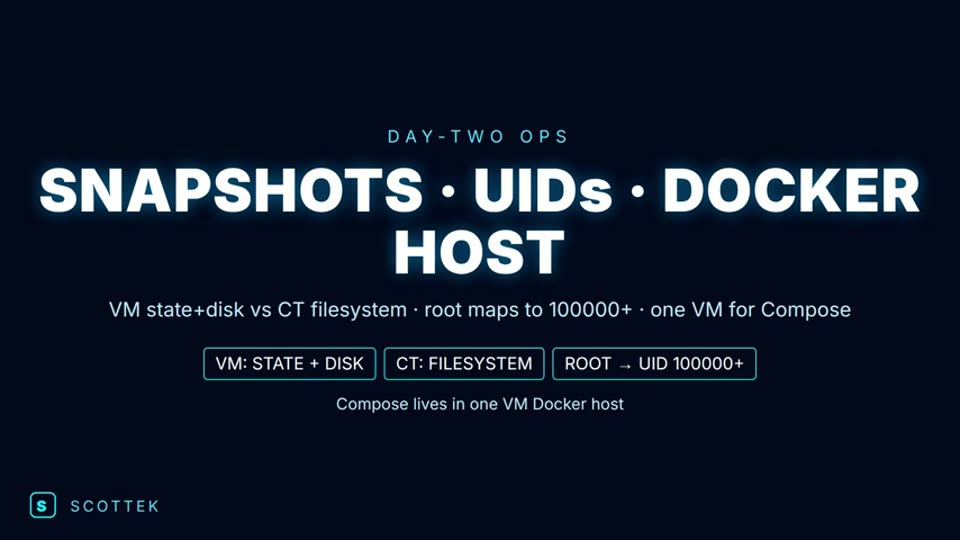
- Treat live migration as VM-only and plan container moves as stop plus restart, untested here
- Keep Windows machine versions pinned at creation because Windows is sensitive to virtual hardware changes, while Linux guests usually accept newer versions cleanly
- Size backup storage for heavier VM snapshots that can capture running state plus disk versus tiny instant container snapshots suited to pre-upgrade rollback of proxy or DNS boxes
- Run every container unprivileged and learn the UID mapping once, where container root maps to an unprivileged host ID near
100000, so bind mounts and file permissions need UID thinking - Update OCI containers by rebuild not patch, meaning pull the new image, create a fresh container, and reconnect storage, network, and environment, since a newer tag does not upgrade a running container
- Nest containers inside a QEMU VM when maximum isolation or live migration is required, which the Linux Container wiki still lists as recommended practice
- Keep a serious Compose stack in a Docker-host VM first, then split out single services later, rather than shredding working Compose files on day one
What is new in Proxmox 9.2 for clusters
Installs today land on Proxmox VE 9.2, released May 21 2026 and based on Debian 13.5, kernel 7.0, QEMU 11.0, LXC 7.0, and ZFS 2.4, per the Proxmox 9.2 press release. Background on the 9 series is also summarized in the what is new in Proxmox VE 9 guide. Nothing below changes the LXC or VM decision, but it explains why VMs earn their keep in a cluster.
- Uses a dynamic load balancer in a new dynamic CRS mode that watches real CPU and memory pressure and migrates HA guests to reduce imbalance while respecting HA and affinity rules
- Adds cluster-wide HA Arm and Disarm so maintenance windows can suspend the HA stack without fencing, then restore prior HA states and placement
- Expands SDN with WireGuard fabrics, BGP fabrics, BGP route maps and prefix lists, OSPF route redistribution, extra EVPN controller options, and IPv6 EVPN underlay
- Adds a custom CPU models interface under Datacenter with a CPU flags selector for cluster-wide compatibility checks
- Offers Ceph Tentacle 20.2 as the default for fresh installs while Ceph Squid 19.2 remains supported
Index-card rule and next steps
Default to a container for every trusted Linux service. Switch to a VM the moment it needs its own kernel, its own hardware, stranger code, or a live move. Use OCI images to skip template hunting for standard single services, and reach for a VM-based Docker host when the Compose stack gets serious.
- Revisit the own kernel, trust, hardware, and density checks before every new workload
- Prefer rebuilds over in-place image swaps for OCI containers
- Continue with remote access, NAS, media, and local AI guides once this layout is stable, since those guides assume this LXC and VM split