Install Appwrite 2.7.3 on Ubuntu: Your Own Backend in 90 Seconds

Companion guide and video starting point
This article is a companion to the video, not a replacement for it, and the video is the starting point for everything below.
In the video: the presenter installs Appwrite 2.7.3 on Ubuntu 24.04, runs the official installer image to open a browser setup wizard, walks through four wizard steps, and ends with the API answering version 2.7.3 and a first project ready in the console.
Added from the sources: install mechanics were checked against the official Appwrite self-hosting installation docs and the Appwrite GitHub repository on November 19, 2026. Anything the video describes but that was not independently run here is marked untested here.
What you need before starting
In the video: you need Ubuntu 24.04 with 4GB of memory, Docker with Compose version 2, and ports 80, 443, and 20080 free for the console, secure traffic, and the setup wizard.
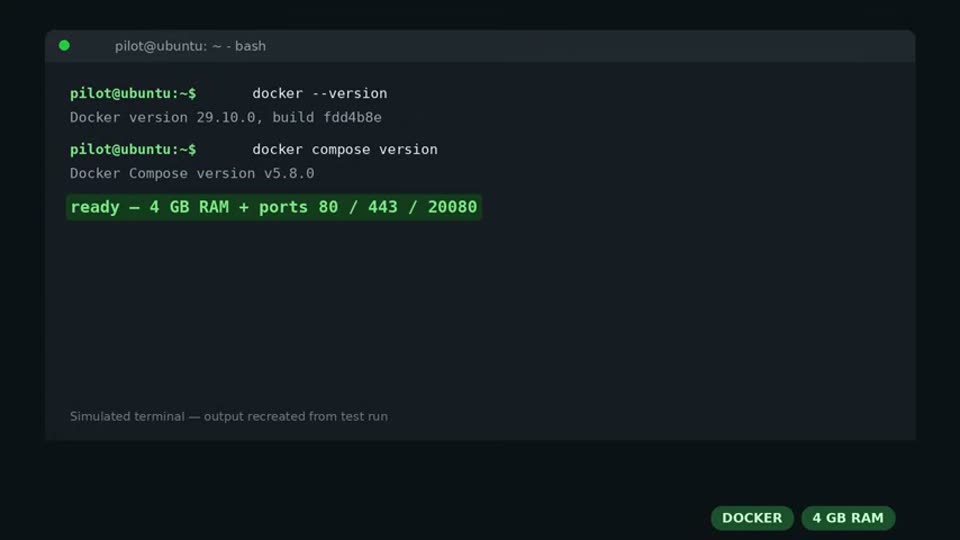
- Ubuntu 24.04 is the video's platform, with 4GB of memory as the stated floor for the full container stack.
- Docker with Compose version 2 is required, since the installer writes config files that Compose brings up.
- Ports 80, 443, and 20080 must be free so the console, secure traffic, and the wizard listener do not collide.
- The download pulls a few gigabytes, so give it time on a metered or slow link before judging progress.
- A stable server address matters because the wizard writes it into the config for callbacks and keys.
- Keep a text file handy for the secret key and the wizard address before opening the browser.
- This guide describes the install path only, so snapshot or back up the host before running anything with elevated rights.
Check Docker and run the installer image
In the video: the presenter confirms Docker with two short checks, makes a folder for Appwrite, then runs the official installer image, which prints a browser address for the setup wizard in the terminal.
Added from the sources: the official Appwrite self-hosting installation docs describe running the official installer image for this version, so follow that page for the exact invocation rather than a remembered command line, which is untested here. The video labels its terminal frames as simulated with output recreated from a test run.
- Confirm Docker with
docker --version, which should report a working engine before you continue. - Confirm Compose v2 with
docker compose version, which should report a version 2 plugin rather than the legacy binary. - Make a folder for Appwrite to hold the installer output, keeping the project separate from the rest of the host.
- Run the official installer image
appwrite/appwrite:2.7.3exactly as the official Appwrite self-hosting installation docs describe for this release. - Copy the wizard address the installer prints in the terminal, since the next section happens in the browser.
- The container download and launch path was described in the video but not run here, so it is untested here.
Walk the four wizard steps
In the video: the presenter opens the printed address on port 20080 and walks four wizard steps covering the server address, the database choice, a secret key, and the admin account before pressing install.
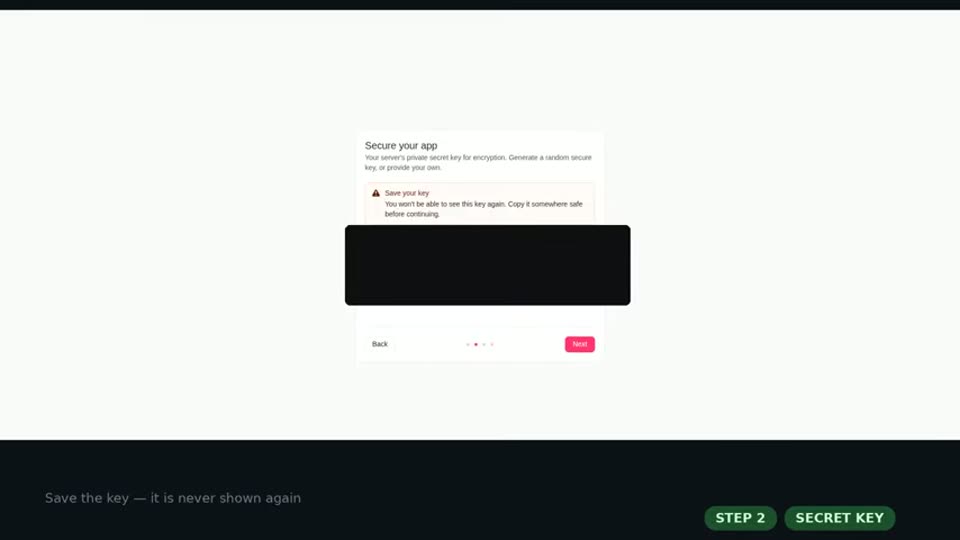
- Step one types the server address, keeps Postgres, keeps the default ports, and goes next.
- Step two shows a generated secret key, so save it somewhere safe because it is not shown again.
- Step three creates the admin account, or leaves it blank to create one in the console later, then goes next.
- Step four reviews the choices and presses install, which writes the config files and starts the stack.
- The wizard brings up 18 containers, and that part takes a while, so let Compose finish before testing.
- The wizard run was described in the video but not repeated here, so it is untested here.
Verify the API and open the console
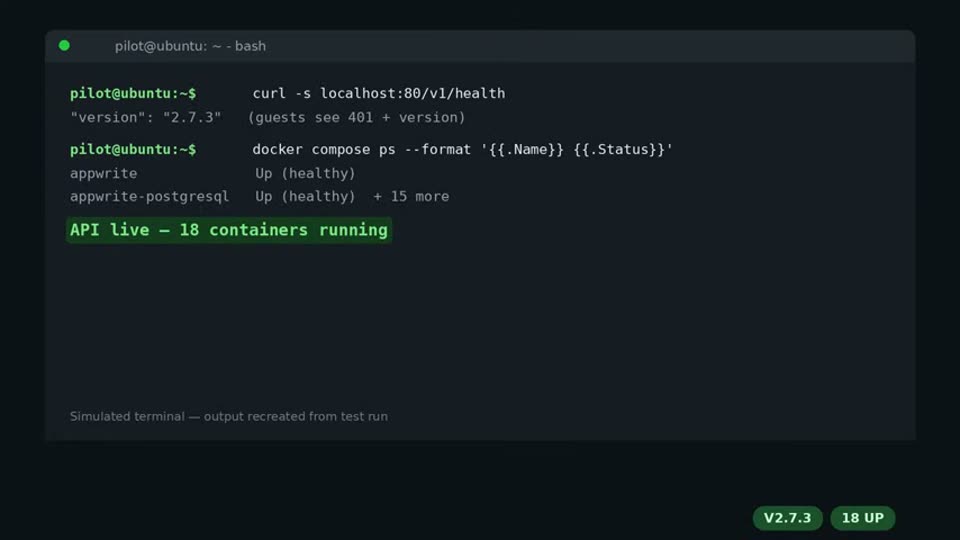
In the video: once the containers are up, the presenter checks the API health endpoint for version 2.7.3, confirms the stack with Compose, then opens the console on port 80 and signs in to a first project.
Added from the sources: the health endpoint and project model match the official Appwrite self-hosting installation docs, with the source code at the Appwrite GitHub repository.
- Check the API with
curl localhost:80/v1/healthand look for version 2.7.3 in the answer, which means the backend is live. - Confirm the stack with
docker compose psand look for 18 containers Up before trusting the console state. - Open the server address on port 80 in the browser, using the host form of
http://YOUR-SERVER/for a local box. - Sign in with the admin account from the wizard, or create one in the console if that step was skipped.
- Expect the console to list a first project with login, database, and storage ready to connect an app.
- Create a project from the console to get keys for login, database, and storage in your own app.
- If the health endpoint does not answer, wait for all 18 containers to report Up and retry before changing config.
- If the console page does not load, confirm nothing else on the host is already bound to port 80.
- Verification here is video-reported plus docs-grounded, so treat the first live health check on your own box as the real proof.
What to try next
In the video: the closing note is short, so create a project from the console and connect an app to the login, database, and storage services.
- Start with one throwaway project to learn the console before pointing a real app at the backend.
- Add users, one database collection, and one storage bucket first, since those three mirror the video's payoff.
- Guard the saved secret key and the admin account, since both control the whole installation.
- Keep the official Appwrite self-hosting installation docs bookmarked for upgrades and config changes.
- Watch the Appwrite GitHub repository for releases newer than 2.7.3 before changing a working box.
- Related guides on this site live under the guide index, with more self-hosting installs in the same series.
Sources
- Appwrite self-hosting installation docs — https://appwrite.io/docs/advanced/self-hosting/installation — living doc — accessed 2026-11-19 — supports the installer-image path, the wizard steps, and the health-endpoint check.
- Appwrite GitHub repository — https://github.com/appwrite/appwrite — living repo — accessed 2026-11-19 — supports the 2.7.3 release line and the installer image reference.