Install agent-browser on Ubuntu 24.04 — Drive Real Chrome From Terminal

This guide is the written companion to the video Install agent-browser on Ubuntu 24.04 — Drive Real Chrome From Terminal (91s, uploaded 2026-11-05), and it treats the video as the starting point. Claims shown in the recording are labeled In the video, and everything confirmed against the official project sources is labeled Added from the sources. Anything not independently confirmed is marked untested. The transcript fetch failed with HTTP 429, so the video record used here is the owner-written video description, disclosed as such, and there is no Prag research folder for this video. The video's terminal frames are simulated recreations (labeled SIM on screen); the figures below are stills of those frames.
In the video: agent-browser 0.41.2 installs on Ubuntu 24.04 and drives a real Chrome browser from the terminal — one npm install, download Chrome for Testing with the tool itself, open a page, snapshot its controls, click a link, and prove it worked by reading the address back. Added from the sources: the official repository vercel-labs/agent-browser describes the same loop, where snapshot returns the page as compact text with a ref such as @e1 for each element, the agent acts on a ref, reads the page again to check the result, and repeats, with the browser staying open between commands. Added from the sources: the v0.41.2 release page confirms that tag exists (released 2026-11-03), so the pinned version is real.
What the video covers
In the video: the chapters run 0:00 Intro, 0:11 What you need, 0:25 Install with npm, 0:34 Download the browser, 0:51 Open a page, 1:01 Click and verify, 1:12 Close and health check, 1:21 Done. The chapter list and pacing are video claims, repeated here as given.
Added from the sources: the project repository is Apache-2.0 licensed and ships native binaries for Linux on x64 and ARM64 (glibc and musl), with the npm package picking the right binary for the host — which is why the install is a plain global npm install rather than a build.
Before you install: Node, disk, and permissions
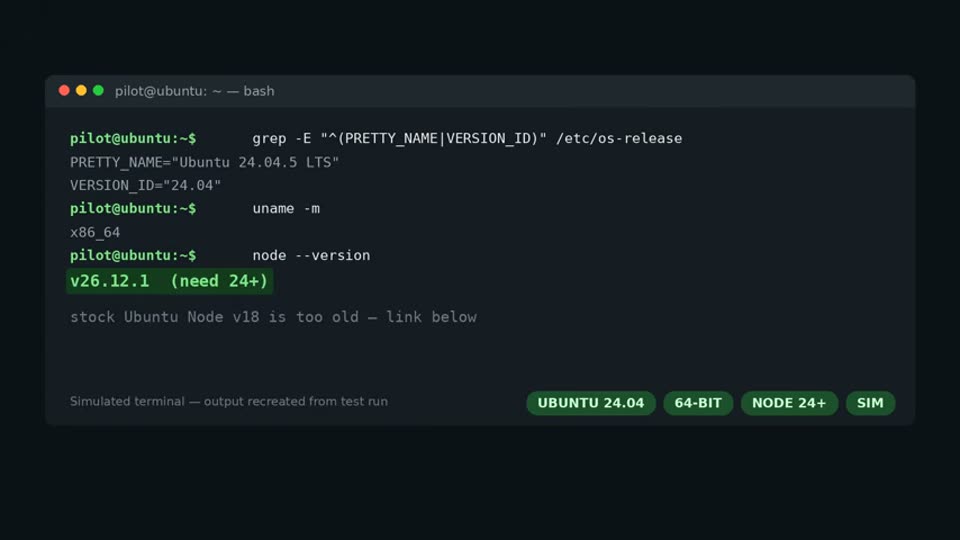
In the video: you need 64-bit Ubuntu 24.04, Node.js 24 or newer, and about 1 GB of free disk. Ubuntu's own Node is v18, which is too old, so install a current Node first. No sudo is needed when your npm global prefix is user-writable, and no accounts are required. The disk figure and the stock-Ubuntu-v18 detail are video claims and are untested here, since no local Ubuntu run was performed. The walkthrough frame shows Ubuntu 24.04.5 LTS on x86_64 with node --version answering v26.12.1, flagged as clearing the 24-plus floor.
Added from the sources: the Node.js download page currently serves the v26 line (shown as v26.13.0 with npm 11.20.0), so a v18 stock package would indeed be far behind current — while the repository README pins Node.js 24 or later for building from source. The linked version-manager route is the nvm repository.
- Use 64-bit Ubuntu 24.04 with Node.js 24 or newer and roughly 1 GB of free disk
- Upgrade a stock Ubuntu Node v18 to a current release before installing
- Expect no sudo prompt while your npm global prefix stays user-writable
Install the CLI and fetch Chrome for Testing
In the video: install with npm, then download the browser using the tool itself. Added from the sources: the README install block is npm install -g agent-browser followed by agent-browser install, which downloads Chrome for Testing the first time only. Later updates go through agent-browser upgrade, per the installation docs.
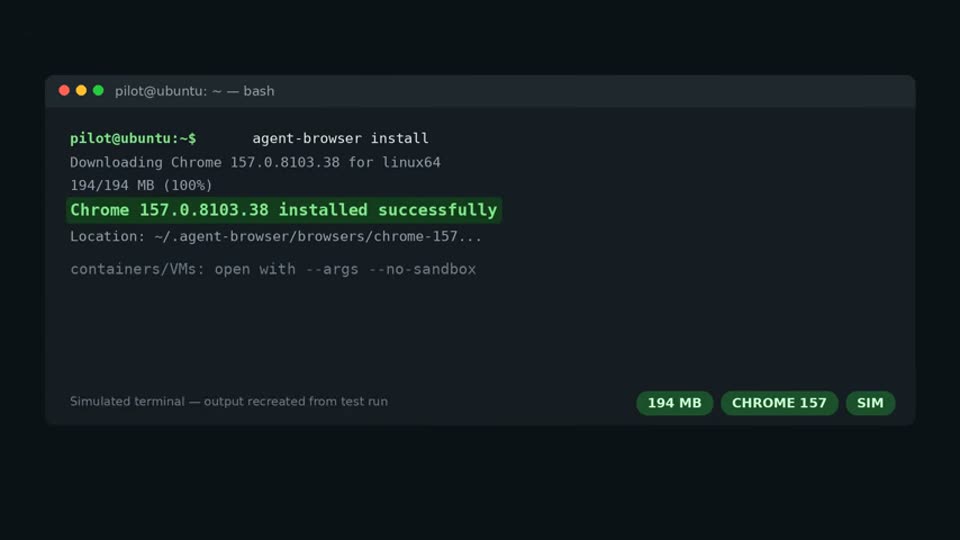
In the video: the install frame shows Chrome 157.0.8103.38 downloading at 194 of 194 MB into the agent-browser browsers folder, with a containers and VMs no-sandbox tip on screen.
- Run
npm install -g agent-browserto install the CLI globally - Run
agent-browser installto download Chrome for Testing (first time only) - Skip installing entirely with
npx agent-browser open example.comwhen you only need a one-off drive - Run
node -vafter a Node upgrade to confirm the shell sees the current release
Open, snapshot, click, and verify
In the video: open a page, snapshot its controls, click a link, and read the address back to prove the click worked. The walkthrough frame shows agent-browser click @e1 answering Done, then agent-browser get url reading back the example-domains page.
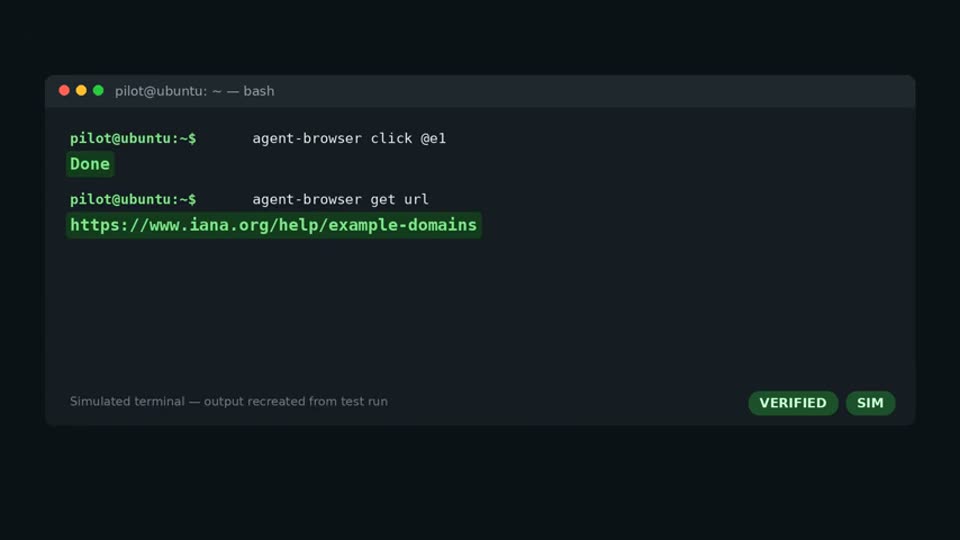
The exact demo page and link target are unnamed in the video record and are untested here — the example.com flow below comes from the docs, not the demo.
Added from the sources: the README quick start teaches exactly this loop with agent-browser open example.com, then agent-browser snapshot -i for the interactive elements each carrying a ref, then agent-browser click @e1 to act on a ref from that snapshot, then agent-browser get url to check the result, and finally agent-browser close. Refs describe the page at snapshot time, so take a new snapshot after navigation or DOM changes before reusing refs.
Added from the sources: a click fails instead of reporting success when the target is hidden, disabled, outside the viewport, or covered by another element such as a consent banner — dismiss the covering element, take a new snapshot, and retry.
- Run
agent-browser open example.comto navigate - Run
agent-browser snapshot -ito list interactive elements with refs - Run
agent-browser click @e1to act on a ref from the latest snapshot - Run
agent-browser get urlto prove the navigation landed where expected - Run
agent-browser closewhen the session is done
The sandbox flag and missing libraries
In the video: the demo ran open with the --no-sandbox flag because the test host disables unprivileged user namespaces — stock Ubuntu desktops run a plain open, while containers and VMs use the flag. If the browser reports missing shared libraries, the docs cover installing with the with-deps flag, which needs sudo. Placeholder paths in the demo stand in for real home directories, and the narration voice is synthetic. The exact open --no-sandbox flag form was not independently confirmed in the sources read and is untested here.
Added from the sources: the installation docs confirm agent-browser install --with-deps also installs the browser's system libraries, exiting nonzero if the package manager cannot install every required library, and using sudo for non-root users (root privileges or sudo are required). Added from the sources: the configuration docs corroborate the --no-sandbox pattern for constrained hosts with a CI and devcontainer example that passes "args": "--no-sandbox,--disable-gpu".
- Run
agent-browser install --with-depswhen Chrome for Testing reports missing shared libraries (needs sudo as a non-root user) - Keep plain
openon stock Ubuntu desktops and reserve the sandbox workaround for containers and VMs - Treat demo paths as placeholders for your own home directories
Close and check health with doctor
In the video: the session ends with a close and a health check. Added from the sources: the installation docs define agent-browser doctor as the install diagnosis that also auto-cleans stale daemon files — run it whenever something stops working unexpectedly or after upgrades. It checks the environment, the Chrome install, running daemons, config files, security key material, provider credentials, network reachability, and a live launch test, exiting 0 when all checks pass.
- Run
agent-browser closeto end the browser session - Run
agent-browser doctorfor the full diagnosis after installs, upgrades, or odd failures - Run
agent-browser doctor --offline --quickfor the fastest local-only pass
Sources and next steps
- The companion video is the starting point for this guide and all In the video claims above
- The project repository owns the install command, the open, snapshot, click, get, and close loop, and the platform binaries
- The v0.41.2 release page owns the pinned-version confirmation
- The installation docs own the with-deps behavior, the upgrade path, and the doctor health check
- The configuration docs own the CI
--no-sandboxargs pattern - The Node.js download page and the nvm repository own the current-Node route
- For driving desktop apps instead of web pages, see the companion guide Install agent-desktop on Ubuntu