What the video covers at a high level: why one login beats per-app passwords, what is new in the certified release line, the documented Compose install, putting Authentik behind TLS, and protecting a first app plus a native second app
This page adds the checkable details: exact doc pages, documented commands in code form, and the gotchas that bite upgraders, with untested steps marked as untested here
What one login actually means
Authentik is a self-hosted identity provider described by its maintainers as an open-source platform that unifies identity needs in one place, acting as one login front door for many apps, as stated on authentik is now OpenID Certified
In plain terms, users and groups live in one directory, a flow is the login recipe such as identify then password then multi-factor then consent, a provider is the translator bolted onto each app, and the outpost answers one question per request, which is whether this browser is signed in
The protocols that matter are OIDC and OAuth 2.0 for modern apps, SAML for older enterprise-style apps, LDAP for directory lookups, and RADIUS for network gear, all fronted by one instance per the OAuth 2.0 provider docs
As of the 2026.8 line, Authentik is officially OpenID Certified for the OpenID Provider profiles Basic, Implicit, Hybrid, Config, and Form Post plus the logout profiles RP-Initiated, Front-Channel, and Back-Channel, announced on authentik is now OpenID Certified
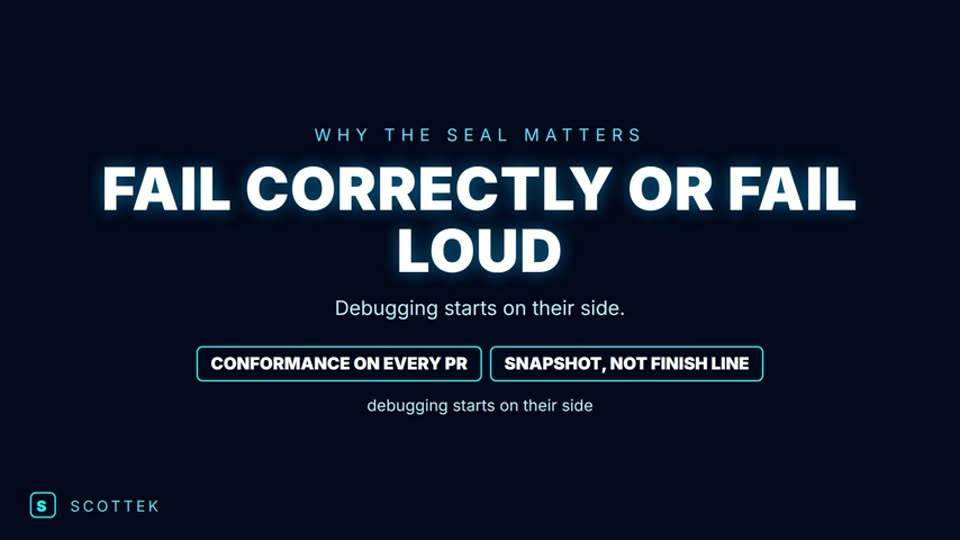
Why that seal matters in practice is debugging leverage: when a cranky app fails against login, a certified side implements the standard correctly, so investigation can start on the app side, a point the certification post makes explicitly
One honest framing from the companion video carries over here: this box guards everything, so it is a single point of failure and backups are non-optional, covered in the backup section below
Certification card: fail correctly or fail loud — debugging starts on their side (Still from the walkthrough video.)
Deploy Authentik with Docker Compose
This is the documented path from the official docs, untested here since no live Authentik instance was run for this guide, and no compose file contents or image tags are invented below
Prerequisites per the Docker Compose installation docs: a host with at least 2 CPU cores and 2 GB of RAM, plus Docker Engine with the Compose v2 plugin confirmed via docker compose version
Plan for 4 GB of RAM when the same box also runs apps, since that floor is where background work stays healthy, and have a DNS A record for the Authentik hostname ready before exposing anything
The documented sequence from the official guide is a short list of steps, run inside a directory such as /opt/authentik
Download the official file with wget https://docs.goauthentik.io/compose.yml
Generate the two irreplaceable secrets into .env with echo "PG_PASS=$(openssl rand -base64 36 | tr -d '\n')" >> .env and echo "AUTHENTIK_SECRET_KEY=$(openssl rand -base64 60 | tr -d '\n')" >> .env
Keep passwords at or under 99 characters per the PostgreSQL note quoted in the install docs
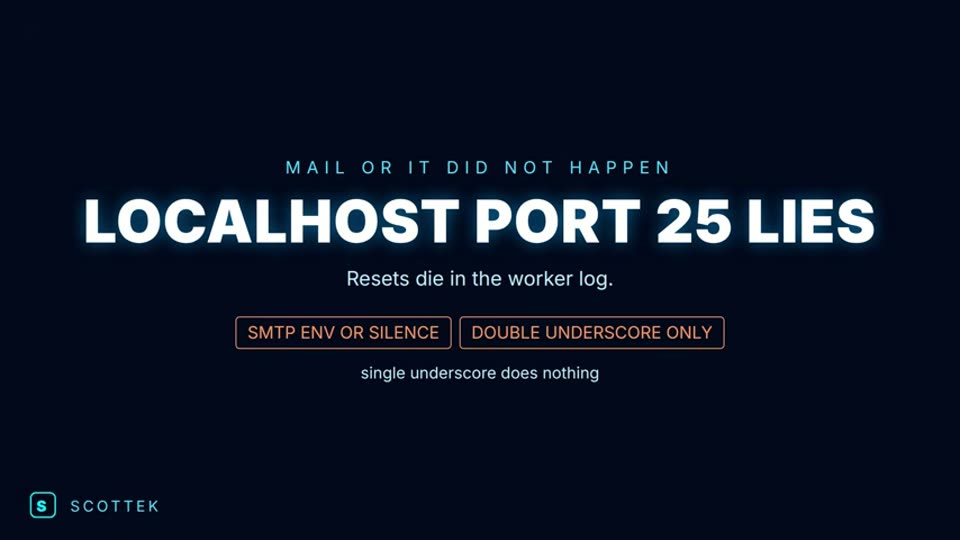
Optional but recommended mail settings live under keys shaped like AUTHENTIK_EMAIL__HOST, since the default tries localhost:25 and password resets otherwise fail quietly into the worker log
Custom public ports use COMPOSE_PORT_HTTP and COMPOSE_PORT_HTTPS, with internal defaults of 9000 for HTTP and 9443 for HTTPS
Start with docker compose pull then docker compose up -d, then check with docker compose ps and give the first start about a minute while migrations run
Expect three services: postgresql plus server and worker, where the server embeds the outpost so nothing else needs deploying
A common documented footgun is the double underscore in keys like AUTHENTIK_LISTEN__TRUSTED_PROXY_CIDRS, where a single underscore silently does nothing
Never invent versions here: the official pattern is that each downloaded compose.yml statically references the latest version available at download time, so re-download the file on upgrade rather than guessing a tag, per the Docker Compose installation docs
First login and admin hygiene
Open http://<your server IP or hostname>:9000 to reach the initial-setup flow, which prompts for the akadmin password, per the Docker Compose installation docs
For automated installs the documented keys are AUTHENTIK_BOOTSTRAP_PASSWORD, AUTHENTIK_BOOTSTRAP_EMAIL, and AUTHENTIK_BOOTSTRAP_TOKEN, which pre-create akadmin so no password is typed into a fresh web form, untested here
The recommended discipline is simple: create a personal admin under Directory then Users, join it to the authentik Admins group, and sign in as that human daily
Keep akadmin as the break-glass account with a long offline password, because shared everyday use of one root name destroys the audit trail
Debugging logins can use AUTHENTIK_LOG_LEVEL=debug temporarily, then return it to info afterward, untested here
Error reporting stays off unless explicitly enabled with AUTHENTIK_ERROR_REPORTING__ENABLED=true
Protect one app with forward auth
Forward auth keeps your existing reverse proxy moving traffic and asks the Authentik outpost only whether each request is signed in, per the Forward auth docs
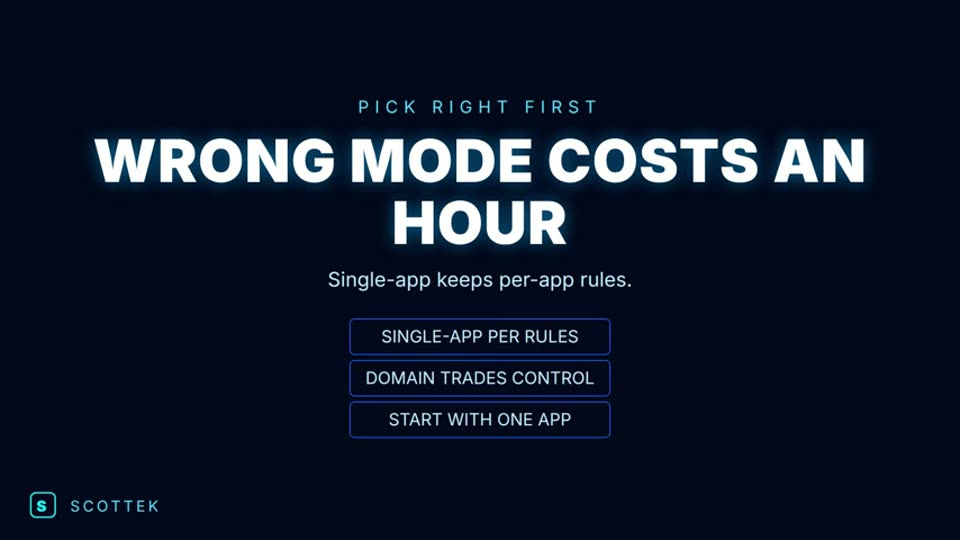
Pick the mode deliberately: Forward auth single-application covers one app on its own domain with its own provider and policies, while Forward auth domain-level covers many apps under one parent domain with weaker per-app rules
With your own proxy, the documented choice for distinct access rules is single-application mode, created under Applications then Providers as a new proxy provider
Set External host to the exact public URL such as https://app.example.com, including the scheme, since an http versus https mismatch issues the cookie on one origin and reads it on another and causes an endless login loop until the host is fixed and cookies are cleared
Only the /outpost.goauthentik.io path on the app domain routes to the outpost in single-application mode, while app traffic keeps routing to the upstream app
Behind TLS the same pattern holds across proxies: Traefik labels with a Host rule plus the websecure entrypoint, nginx with auth_request, or Caddy with forward_auth, and the protected hostname must route the outpost path to Authentik rather than the app
Verify the hostname with curl -I https://auth.example.com/if/user/ and expect an HTTP/2 200, where a proxy 404 means no router matched, so recheck labels, hostname, and entrypoint
Then bind published ports to 127.0.0.1 so the proxy is the only way in, untested here
Start with something internal first, such as a wiki or dashboard that should never have faced the internet with its own password box
Mode card: wrong mode costs an hour — start single-app (Still from the walkthrough video.)
Connect an app the native way with OIDC
Native login uses an OAuth 2.0 slash OIDC provider attached to an application, where Authentik acts as the OpenID Provider and the app acts as the relying party, per the OAuth 2.0 provider docs
The documented shape is: create the provider, note the client ID and client secret, attach it to a new application, then paste those two values into the app own SSO settings so logins redirect to Authentik and return with a signed session
Keep Redirect URIs exact, since the provider validates the value supplied by the app, and an empty field saves the first-seen URI while advanced setups may use escaped regex such as \. for literal dots
Useful newer options in the 2026.8 line include token exchange between trusted providers, key-bound ID tokens that resist bare token theft, on-behalf-of flows for services acting for a user, and Dynamic Client Registration so compatible apps register themselves, per the Release 2026.8 notes
User switching lets several accounts stay signed in within one browser and switch from the account menu, enabled per brand through a user-switch flow where policies can still demand a fresh password or second factor
Public endpoints such as the JWKS path stay public by design since they carry public keys only, while server-to-server paths like OpenID configuration and JWKS must stay reachable through proxies and firewalls or logins loop on redirects
Back up the keys to the kingdom
Treat two artifacts as irreplaceable: the .env file at mode 600 with PG_PASS and AUTHENTIK_SECRET_KEY, plus a database dump taken before every upgrade
The reason is blunt: a database restored without its matching secret key is one nobody can log into, since the key signs every session and token and changing it later logs out the world
Upgrades follow tag change plus docker compose pull plus docker compose up -d, stepping through major series in order without skipping, with no downgrade support, per the Release 2026.8 notes
Read the release notes first on date-based version lines, and store one offline copy of .env somewhere safe beyond the server itself
All restore steps here are untested here and follow the documented upgrade and install pages rather than a live drill
Gotchas before you depend on it
Trusted proxy networks bite upgraders first: since 2026.8, forwarded headers such as X-Forwarded-Proto, X-Forwarded-Host, and X-Forwarded-For apply only from networks listed in AUTHENTIK_LISTEN__TRUSTED_PROXY_CIDRS, and a wrong value makes HTTPS read as HTTP with blocked mixed content, an endless loader, or auth errors, per the Release 2026.8 notes
Mail defaults lie quietly: without SMTP settings, resets try localhost:25 and land in the worker log, so set real mail values before inviting anyone
Scheme mismatch loops: fix the external host to the exact public URL and clear cookies after correcting it
Memory pressure misleads: when the kernel out-of-memory killer fires, the worker tends to die first, so logins keep working while background tasks and outbound mail quietly stop, which is why the RAM floor deserves respect
No apps ship in the box: value appears only after a first real app sits behind Authentik, so stop after the install and the box looks empty by design
Enterprise-only labels matter: privileged access management, agent accounts, scheduled offboarding, and self-hosted event maps are Enterprise features in the 2026.8 notes, while the free core covers everything in this guide with no license needed
Management command hygiene:docker compose run --rm server hash_password no longer takes a password argument since it leaked into process lists, so run it bare for a hidden prompt or pipe via standard input, and the removed WebAuthn duplicate-device guard needs no replacement action
Do not mount timezone files into the containers since internal operations use UTC and mounting /etc/timezone or /etc/localtime breaks OAuth and SAML flows, per the install docs
Mail card: localhost port 25 lies — SMTP env with double underscores (Still from the walkthrough video.)
Keep going
Weekend-shaped plan from the companion video, in text form: first get the install healthy behind TLS, next create a personal admin and retire akadmin to the safe, then slide one internal app behind forward auth before adding a second app over OIDC with a passkey enrolled
Then invite one family member, confirm mail delivery works, and verify the backup files exist before calling it done
Sources for every consequential claim are linked inline above, and anything labeled untested here follows the official docs without a live run in this guide