Self-Host Your Passwords: Vaultwarden Setup Guide

Watch the companion walkthrough
This guide companions the video Self-Host Your Passwords: Vaultwarden Setup Guide (2026) and adds the primary-source links and lockdown order in one place.
The video frames the whole project around a single idea: encryption happens inside the official Bitwarden clients on your devices, so the self-hosted server only ever stores ciphertext it cannot read. Moving that ciphertext onto hardware you control is the point of the exercise.
Nothing here was live-installed while preparing this written companion, so treat the documented flows below as verify-before-you-run and check the linked Vaultwarden wiki pages for the latest details before deploying.
What Vaultwarden is
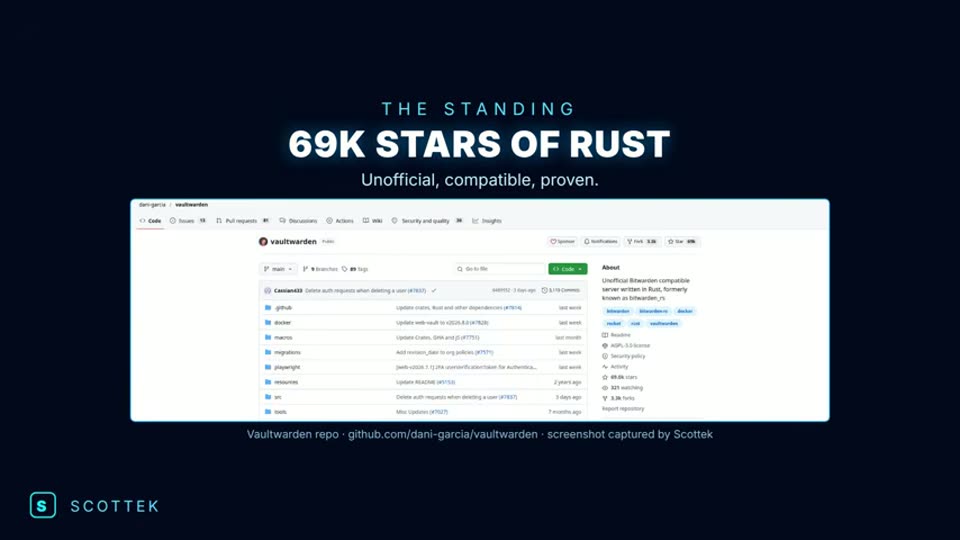
Vaultwarden is an unofficial Bitwarden-compatible server written in Rust, formerly known as bitwarden_rs and renamed to avoid confusion with the official product. Its own disclaimer states plainly that the project is not associated with Bitwarden or Bitwarden Inc.
It speaks the Bitwarden protocol, so the apps stay familiar: the official Bitwarden clients for web, desktop, mobile, browser extension, and CLI connect to it, alongside the built-in web vault. The project targets individuals, families, and smaller organizations where running the heavier official multi-service stack is undesirable, and the wiki lists personal vaults, organization vaults, collections, folders, file attachments, Bitwarden Authenticator TOTP, Send, emergency access, and trash among the supported surface.
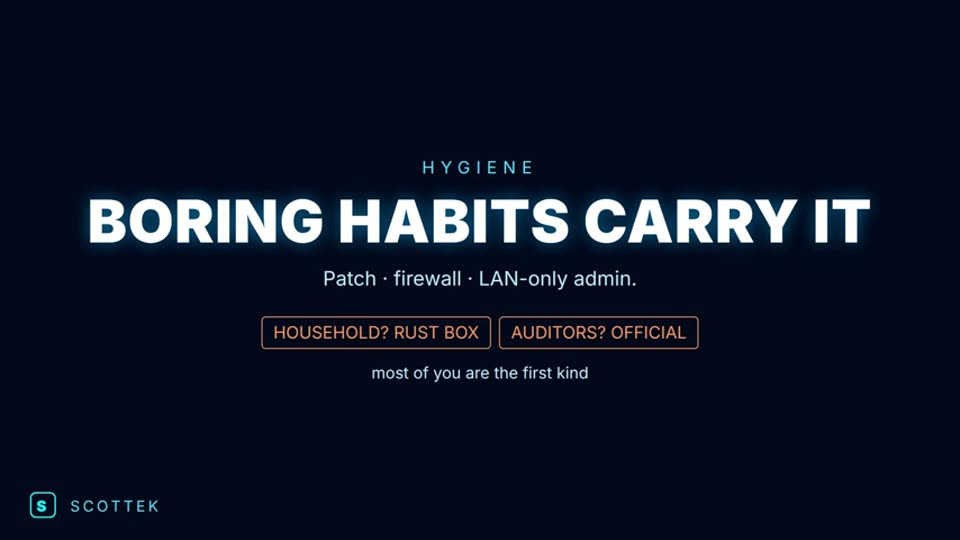
The trade-off, as the video frames it, is honest scope: one household or family homelab maps well to Vaultwarden, while a company with auditors and compliance checklists maps better to official Bitwarden self-hosting. Vaultwarden's own wiki keeps a missing-features section, so check the wiki home against anything you depend on before migrating.
Docker Compose deploy
The recommended path in the video is one container via Docker Compose, using only documented settings: the vaultwarden/server image with a pinned tag, a volume mapping such as ./vw-data:/data for the persistent data directory, and three environment variables that do the real work, DOMAIN, SIGNUPS_ALLOWED, and ADMIN_TOKEN.
The Docker Compose wiki page documents this shape directly, including a minimal template and a Caddy variant where DOMAIN is set to the public https address because Vaultwarden needs to know it is behind https for attachments and generated links to work. The same page documents starting with docker compose up -d and updating with a pull followed by recreating the container. Pinning the image tag so updates happen on your schedule, rather than floating on latest unintentionally, is untested here but matches the video's guidance.
- Set
DOMAINto the publichttpsURL before first launch - Keep the data volume path somewhere you actually back up
- Check the container logs for the version banner so you know which build answered
- Confirm the current release line on the Vaultwarden releases page before pinning, since the video cites the 1.37 line at publish time and lines move
Admin token and signup lockdown
The admin panel at /admin is governed by ADMIN_TOKEN, and the wiki recommends generating it as a long random string with openssl rand -base64 32 and keeping it secret, since it is effectively the password for server administration. The admin page wiki also notes the panel should sit behind https before enabling it, and that the panel exposes users, organizations, invitations, configuration, and diagnostics.
The lockdown order matters more than any single setting. Create accounts while SIGNUPS_ALLOWED is still open, then set it to false and recreate the container so strangers cannot self-register afterward. The wiki template carries the same warning inline, and the video treats that five-minute open window as the single most important step of the project.
- Generate the token before first boot with
openssl rand -base64 32 - Create your account and invite family while signups are open
- Flip
SIGNUPS_ALLOWEDtofalseand restart immediately after - Reach the panel at
/adminand confirm it answers only with the token
Why HTTPS is required
Bitwarden clients refuse to sync over plain http by design, so pointing an app at an unencrypted LAN address fails no matter how healthy the container is. The documented fix is a reverse proxy terminating TLS in front of Vaultwarden, with DOMAIN set to the same public https address.
The easiest path covered in the video is Caddy with automatic certificates, using a small Caddyfile for the vault hostname and letting it fetch and renew the certificate. The wiki's proxy examples and Caddy Compose template show the same arrangement: Vaultwarden listens on plain http inside the private network while the proxy owns the public certificate. Binding the published container port to localhost and letting only the proxy face the network keeps that story intact, and the exact Caddyfile tuning here is untested, so follow the wiki template verbatim.
Client apps, 2FA, and first login
First login should feel familiar because it is the Bitwarden interface: folders, collections, favorites, the password generator, and imports from wherever your logins currently live. The video suggests moving entries in, turning on two-step login for the account itself, and setting up an organization for shared family logins instead of texting passwords.
For account-level two-step login, the wiki documents email, Duo, YubiKey, and FIDO2 WebAuthn including Nitrokeys and SoloKeys, plus TOTP authenticator keys inside the vault. WebSocket live sync covers desktop and browser clients, with push notifications documented separately for mobile. Passkey and SSH-key client features ride along in the apps themselves since the clients keep evolving independently of the little server, so confirm current client support in the Bitwarden release notes rather than treating any client feature list here as frozen.
- Point apps at the public
httpsURL, never the raw LANhttpaddress - Enable two-step login on every account, preferably with a hardware key or TOTP
- Use an organization with collections for anything shared
- Keep the
/adminpanel off the open internet where possible, such as behind a VPN or tailnet
Backups decide whether this was smart
The whole vault is the data directory mapped in Compose: per the backup wiki, that means db.sqlite3 holding nearly all vault state, the attachments directory for file attachments, config.json for admin-configured settings, and the rsa_key* files used to sign sessions. The wiki marks the database and attachments as required backups, with config and keys recommended, and warns that its liability note means unbacked-up data loss cannot be recovered by anyone.
For the default SQLite backend, the wiki documents backing up with the SQLite online backup API while the database may be in use, or stopping Vaultwarden and copying the directory, plus a built-in /vaultwarden backup command and its docker exec form. Copy the result off the box on a schedule rather than on vibes, keep at least one remote copy, and test a restore somewhere safe, because a backup never restored is only a rumor. Restore and scheduling specifics are untested in this companion.
Security hygiene and what stays untested
Patch deliberately by pulling the pinned image on a schedule and reading the release notes, the way anything guarding secrets deserves. Guard /admin with the strong token, restrict who can reach it, and remember the video's broader warning that internet-facing admin pages on unpatched services are how incident reports get written.
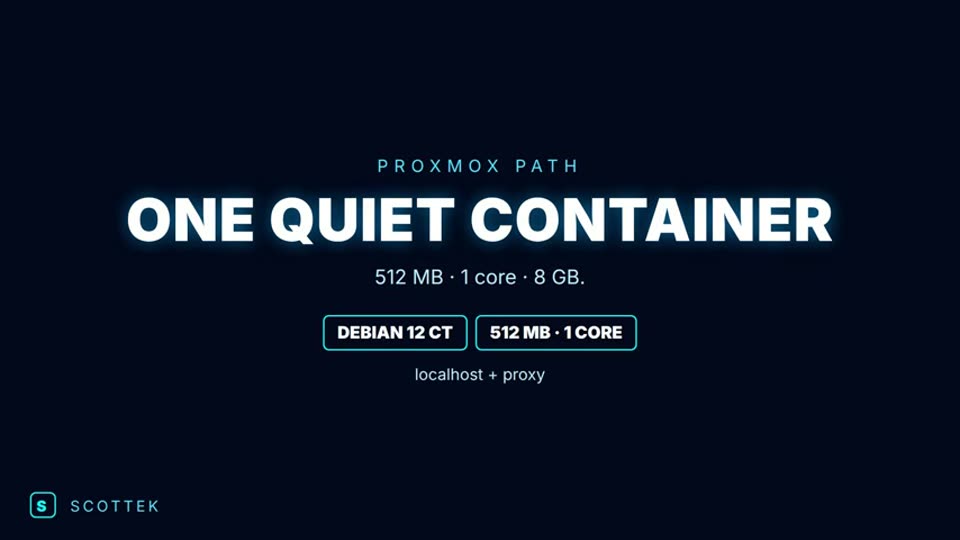
Untested in this written companion: the Compose deploy itself, the Proxmox LXC path, Caddy certificate issuance, client sync against a fresh instance, and any restore drill. The Proxmox shape in the video, a small Debian container with modest RAM and a few gigs of disk plus Docker and the same Compose file, is presented as-is from the video and secondary guide rather than verified here. Check the Docker Hub listing and the wiki before trusting any pin or resource figure.
Related
- One Login for Your Entire Homelab: Authentik SSO Setup for single sign-on across self-hosted apps once the vault itself is home