llama.cpp 0.8 Turns Your Server Into a Voice AI

Watch the starting-point video on YouTube
This guide is a companion to the video above, which turns a basic llama.cpp server into a voice-capable one. YouTube auto-captions were unavailable when this was drafted, so the video side is grounded in the project's voice-over script and research notes in the Prag folder llama.cpp 0.8 Voice AI Server Guide, corroborated against the primary sources linked below. Anything the video demonstrates is credited to the video; anything added from documentation is marked as such, and untested steps are marked untested.
Where this guide fits
Start with the prerequisite install walkthrough at Install llama.cpp 0.8 on Ubuntu, which covers the no-build download, starting llama-server, and verifying /health and /v1/models. This article is the distinct sequel: it covers only what that guide does not, namely the 0.8 voice endpoints, voice-capable models, and the new model browser in the web UI. If you only need a text chat server, the install guide is enough.
The realtime voice endpoint
The video's headline is a new WebSocket endpoint at /v1/realtime that speaks the OpenAI realtime protocol, so apps written against a hosted realtime API can point at your own server instead. The video presents it as one persistent connection carrying live conversation and transcription, with audio that never leaves your network. Upstream documents it as realtime transcription for models with a streaming audio encoder in the server README, compatible with the OpenAI /v1/realtime schema, added via PR 31269.
- Live speech recognition models transcribe continuously in sessions opened with
/v1/realtime?intent=transcription, while other sessions hold a realtime conversation, per the server README - An example client using the
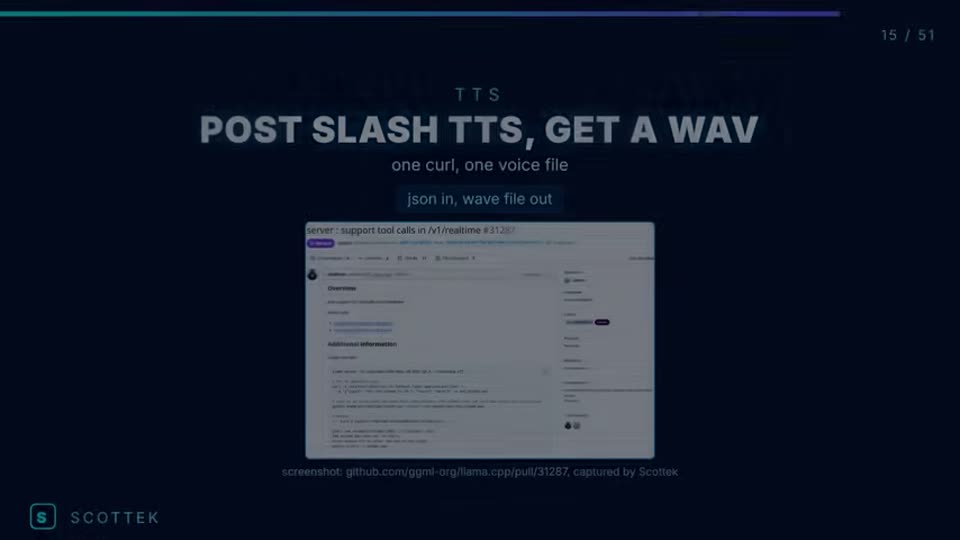
openailibrary ships asexamples/realtime_client.pyin the repo, per the same docs - The video also notes follow-up work bringing tool calls to realtime sessions, shown on-screen as PR 31287
Connecting a client to this endpoint is docs-derived and untested here.
Turning text into speech with POST /tts
Next to realtime sits a second new endpoint, POST /tts, for text-to-speech models: send JSON with text and a voice name, get speech audio back. The video walks through the documented upstream demo rather than claiming a local run, so treat the commands below as upstream-documented and untested.
- Start the server with a voice-capable model, using the upstream demo invocation:
llama-server -hf LiquidAI/LFM3-Omni-2B-GGUF:Q8_0 --reasoning off - Send text and pick a voice, per the upstream demo in PR 31287:
curl -s localhost:9931/tts -H Content-Type: application/json -d {"input": "Set the volume to 30.", "voice": "male"} -o set_volume.wav - The endpoint returns raw audio bytes (
audio/wavby default), and thellama-ttsCLI picks voices with--tts-voice, per the server README - The TTS endpoint itself arrived via PR 26603, and 0.8 adds
SOPRANOandLFM3Avoice types for TTS models to target, per the 0.8.0 release notes
Voice-capable models that arrived with 0.8
The video pairs the endpoints with models that can actually use them, led by the LiquidAI LFM3 family with day-one support verified against the reference implementation, per the 0.8.0 release notes. The family spans a 1.7B text model, a vision sibling, and Audio plus Omni variants that handle speech recognition, speech synthesis, and full voice chat from one set of weights. The GGUF quants are live on the Hub, including LFM3-Omni-2B-GGUF and LFM3-Audio-2B-GGUF, with projector files alongside the Omni quants so the audio path loads. Model background is at LiquidAI model docs, and the video reminds viewers to check each model card for license terms rather than assuming any.
- Voice beyond LFM3 is wide in this release: DeepSeek V4.1 Flash, Beam Reflection, Flint Recursive, and Muse Spark with text plus vision plus audio flavors, per the 0.8.0 release notes
- Rounding out the drop are Kolibri-1, SenseNova U1, Granite Switch Decision, LiquidAI d1 decision models, an H2O Lightning decision model, a Nemotron embedding model, and MiniCPM-OCR for documents, per the same notes
The web UI model browser
The 0.8 web UI lets you discover and download models from the Hugging Face Hub inside the interface, which the video flags as the end of manual weight wrangling for casual setups. Upstream lists Hub discovery and download plus a models manager on its own route in the 0.8.0 release notes.
- Conversation and message search plus one-click compaction keep long chats inside the context window, per the release notes
- Voice notes attached as
OGGare converted toWAVautomatically, and the reasoning menu is built from the template's own effort levels, per the same notes - The video positions these as small touches felt daily rather than headline features, which matches their billing in the release notes
Self-hosted voice versus hosted voice
The video includes a sponsored segment framing hosted voice APIs as the counterpart to self-hosting rather than a replacement: speech in, speech out, same endpoint shape either way. No affiliate link is carried in this guide.
- The video's framing is self-hosting stays free while hosted narration is optional, so readers who only want local inference lose nothing by skipping that segment
- Keep the channel's tools distinct per site rules: nothing in the video disparages self-hosting, and nothing here should either
Version notes and pitfalls
- The upstream TTS demo targets port 9931, the current server default after the 0.7-era change from 8080 called out in the install guide, so read your server's actual listening line before assuming a port. Docs-derived and untested.
- The 0.8 breaking change also noted in the install guide still applies: the server and CLI now require
--modelor-hfwith a repo and quant, erroring out on a bare launch, per PR 31242. - Pin to the tagged 0.8.0 release from October 28th rather than tracking the moving main branch, which is the video's own reproducibility advice.