Host Minecraft for PS5, Xbox and Switch: Self-Hosted Bedrock Server

This companion guide starts from the video Host Minecraft for PS5, Xbox and Switch: Self-Hosted Bedrock Server and adds grounded detail from the official Bedrock server download page, the Microsoft Learn setup doc, and the BedrockTogether guides. Watch the video first for the full narrated walkthrough, then use the sections below as the written reference. The video is the definitive full guide at 519 seconds, and a shorter Bedrock overview also lives on the channel at the 130-second short. Every section keeps In the video claims apart from Added from the sources research. Readers on PC Java Edition should note this guide is Bedrock-only, since consoles cannot join Java servers, and the separate Paper Java server guide covers that side.
Why consoles need a bridge
- In the video: consoles ship Minecraft with no field for a custom server address, so a PS5, Xbox, or Switch literally cannot see your own box, since consoles can only join Realms and the featured partner servers.
- In the video: the fix is a free phone app called BedrockTogether on iPhone and Android that pretends to be a LAN world the console can see, then hands the console off to the real server, with no PC in the middle, no DNS surgery, and no router changes.
- Added from the sources: the BedrockTogether home page confirms the app is free with ads plus a paid ad-free upgrade, covers iOS and Android with no PC version and no DNS involved, and states it is not affiliated with Microsoft, Mojang, Sony, or Nintendo, checked October 2026.
The server and what it needs
- In the video: the server is the Bedrock Dedicated Server straight from Mojang, a free download with no license key and no player slots to buy, and the version covered is 1.26.52.3 in a 91 MB zip pulled from minecraft.net.
- Added from the sources: the official Bedrock server download page lists BDS 1.26.52.3 with Linux and Windows zips, requires 64-bit Ubuntu 22.04 LTS or newer with other distributions not supported, and names an i3-class CPU, 4 GB of RAM, and under a gigabyte of disk plus broadband as the baseline, checked October 2026.
- Added from the sources: BDS is free proprietary software under the Mojang EULA accepted on the download page, and this guide serves Bedrock players only, since Java Edition on PC speaks a different protocol and needs a Java server instead, per the Paper Java server guide.
- In the video: everyone must run the same game version because Bedrock refuses mixed versions outright, every player needs a free Microsoft account signed in, and console players still need their platform multiplayer subscription, meaning Game Pass Core on Xbox, Plus on PlayStation, or Switch Online on Nintendo.
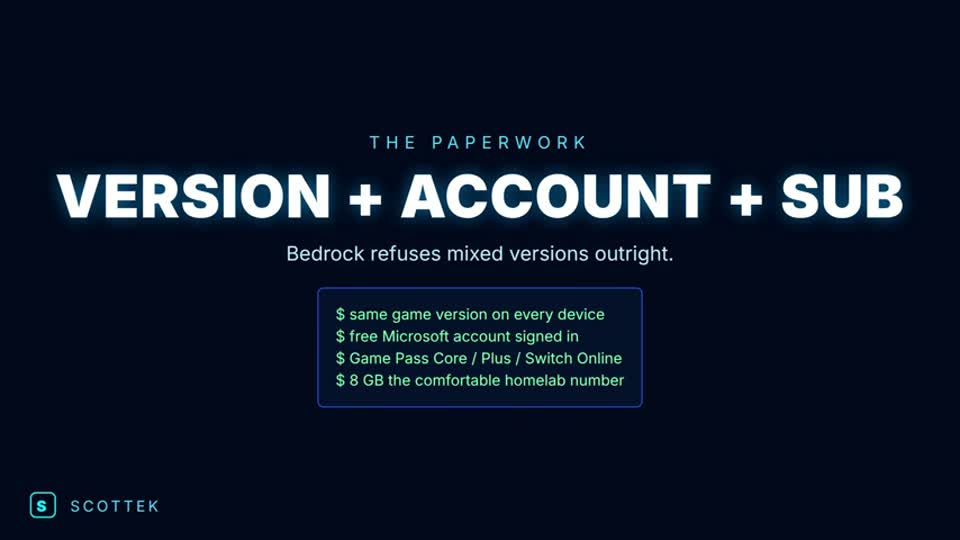
- Added from the sources: setup detail beyond the video, including the allowlist warning text and the server defaults below, comes from bench research notes that extracted the real zip and booted it on Ubuntu 24.04, while a family world that gets built in for real will want more headroom than the minimum and 8 GB is the comfortable homelab number quoted in the video.
Install and first boot
- In the video: install is grabbing the Ubuntu zip from the official download page, dropping it in its own folder, unzipping it, then running the binary from inside that folder with
LD_LIBRARY_PATH=. ./bedrock_server. - Added from the sources: that start command is quoted verbatim from the bundled
bedrock_server_how_to.htmlfile inside the zip, and the Microsoft Learn setup doc covers the same getting-started path, checked October 2026. - In the video: first boot takes seconds and narrates itself, creating the vanilla world, accepting clients on port 19132, then Server started, in about four seconds on the bench.
- Added from the sources: the bench boot measured about 3.4 seconds to Server started with
Version: 1.26.52.3,CREATING VANILLA WORLD,Accepting clients on [::]:19132, and the allowlist warning verbatim, which reads allowlist is enabled but contains no entries and names the exact command to fix it.
Configure the world
- In the video: everything lives in plain-text
server.propertieswith sane defaults, namely the name Dedicated Server, survival mode, easy difficulty, cheats off, ten max players, online mode on, ports 19132 and 19133, view distance 32, and tick distance 4. - Added from the sources: those defaults match the real file, which also lists
gamemode=survival,difficulty=easy,allow-cheats=false,max-players=10,online-mode=true,server-port=19132,server-portv6=19133,view-distance=32,tick-distance=4,level-name=Bedrock level, anddefault-player-permission-level=member, bench-verified October 2026. - In the video: change the name, pick difficulty, and decide on cheats before anyone builds anything they would hate to taint, then restart after edits and keep a copy of the file before updates.
- In the video: the allowlist is the guest list, filled from the server console with one
allowlist addper player name exactly as the boot warning instructs, or switched off for an open family box, and operators are set from the same console. - Added from the sources: backup and update-restore steps here are untested against a live long-running world in this guide, so treat copies of the worlds folder and
server.propertiesas the minimum backup set and verify the restore path during a real update.
Network: same house versus the internet
- In the video: same house needs nothing, since a server on the LAN just works, and that is exactly how the console trick in the next section finds it.
- In the video: outside the house means forwarding one UDP port, 19132, to the server LAN address plus a DHCP reservation so the address never moves, and friends join with the public IP or hostname plus the port.
- Added from the sources: the remote-join path with a public port forward is untested here and was not exercised against a live router for this guide, so verify the forward, the reservation, and version lockstep on update day before inviting anyone across the internet.
Get Xbox and PlayStation on with BedrockTogether
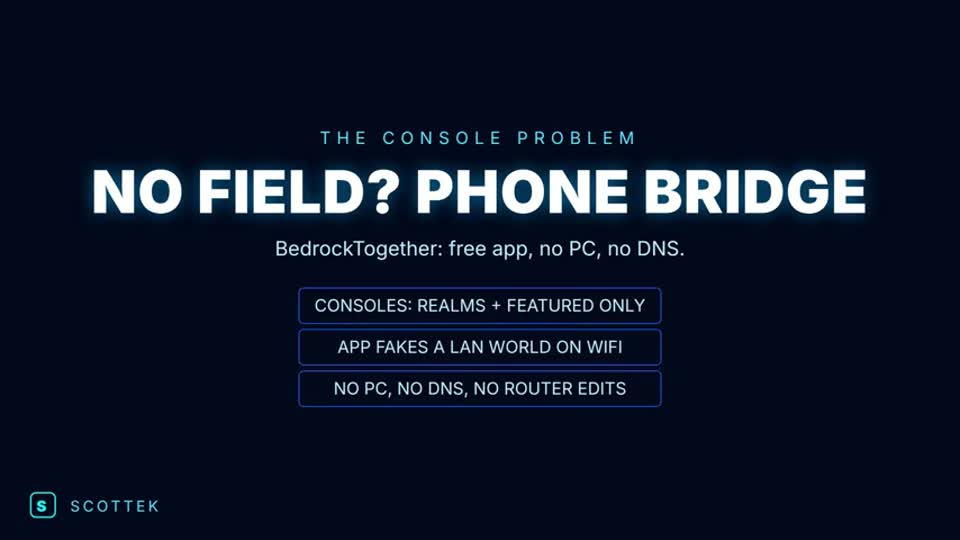
- In the video: Xbox and PlayStation use the LAN method in six steps, starting with the phone and the console on the same Wi-Fi, not guest and not mobile data, since that is where everyone fails.
- In the video: the remaining steps are opening the app and staying on the PlayStation Xbox tab, typing the server LAN IP and port with 19132 as the default, tapping Watch Ad and Run until the app confirms the server will transfer you, then opening Minecraft on the console under Play and the Worlds tab where the server sits as a LAN game, and selecting it to join.
- Added from the sources: those six steps match the official BedrockTogether Xbox guide verbatim, covering same Wi-Fi, the PS-Xbox tab, IP plus port, Watch Ad and Run, the Worlds-tab LAN game, and selecting it to transfer, checked October 2026.
- In the video: once in and playing, the app can be closed, since its job is done.
- Added from the sources: the console join steps are docs-verified but untested here, since no live console join was run for this guide, so confirm the same-Wi-Fi requirement and the Worlds-tab listing on the first real attempt.
The Switch exception and its warning
- In the video: the Switch is the exception because Nintendo Minecraft lists no LAN games at all, so the same app uses the Switch Friends broadcast through Xbox Live instead.
- In the video: the broadcast method emulates a game client against Xbox Live, which may break their terms, and the signed-in account could be banned, so always use a separate throwaway Microsoft account for that step and never the one played on.
- Added from the sources: the BedrockTogether FAQ states the same warning, that the Switch broadcast method emulates a game client against Xbox Live and the account could be banned, recommends the separate throwaway account, and notes the LAN method uses ordinary local discovery with no such vector, checked October 2026.
- In the video: the app states this warning itself before sign-in, and the free app shows ads as its business model with a paid upgrade removing them plus extra saved servers.
- Added from the sources: the Switch broadcast path is untested here and no live ad watch was run for this guide, so read the in-app warning in full and keep the throwaway account fully separate from any main account.
Care, feeding, and the Realm question

- In the video: version lockstep is rule one, since every Bedrock update moves clients and servers together and a mismatched server rejects everyone, so updating means re-downloading the fresh zip over the folder, which is why worlds-folder and
server.propertiesbackups come first. - In the video: back worlds up on a schedule since they are just files that sync anywhere, and keep that UDP forward plus same-day updates for friends across the internet.
- In the video: the verdict is that a Realm is the subscription easy button when consoles dominate and nobody wants homework, while your own box is free forever with full control, ten players by default, your rules, and about fifteen minutes of care a month.
- Added from the sources: the update-over-folder, backup-schedule, and remote-friend steps in this section are untested here, so treat them as video-stated starting points and verify each one against the official Bedrock server download page and the Microsoft Learn setup doc during a real update cycle.