Replace Google Photos: Immich Self-Hosted Guide

Watch the companion video
This guide is the written companion to the video above. The video introduces the full arc from install to phone backup, and this article adds the documented details, links, and operations notes so the setup can be followed at a workbench pace. Nothing here was lab-tested for this article, so every consequential step is framed as the documented path with its source linked inline.
What Immich actually is
Immich is an open-source, self-hosted photo and video manager with a web timeline plus native mobile apps for iPhone and Android. The companion video presents it as a Google Photos replacement, covering automatic mobile backup, shared albums, partner sharing, public links, and on-server machine learning for faces and search. The quick-start guide confirms the same shape, a server deployed with Docker Compose, a web app for management, and mobile apps from the usual stores plus direct APK and F-Droid routes.
- Server side it keeps a Postgres database for metadata, file storage for the library, and a machine-learning service for faces and search, all on local hardware
- Sharing covers multi-user accounts with an admin, shared albums with editor or viewer roles, one-way partner sharing, and public links with expiry and passwords
- Supported media goes beyond plain JPEGs to raw files, live and motion photos, maps, memories, tags, folders, and OAuth plus API keys
Hardware and storage planning
The requirements page sets the floor at 6 GB of RAM and 2 CPU cores, with 8 GB and 4 cores recommended. Since v3 the machine-learning container on amd64 needs a reasonably modern CPU level, which covers most hardware from roughly the last decade, so older servers are usually fine but worth checking against the docs.
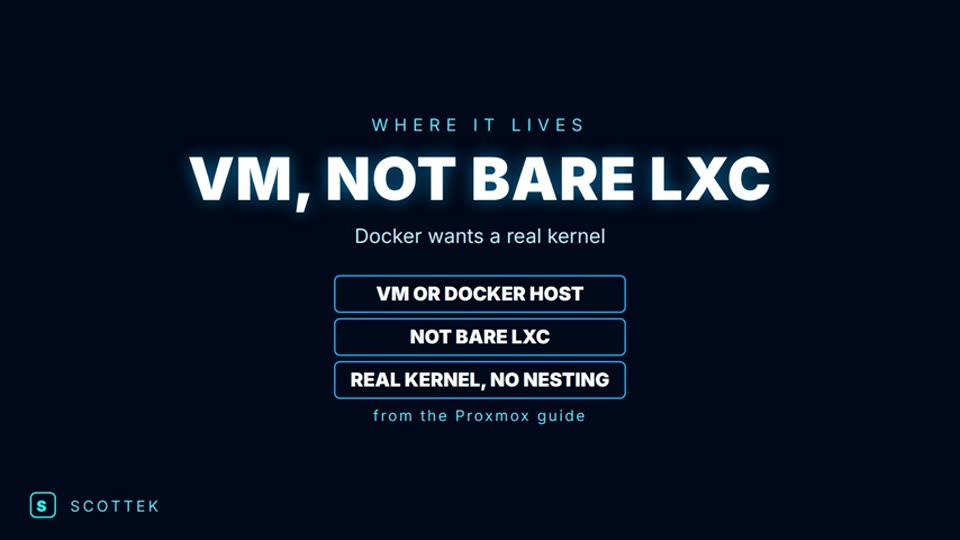
- Run it on a 64-bit Linux host or a full virtual machine, since Docker on non-Linux systems is discouraged for servers and Docker in unprivileged LXC containers is not recommended
- Point the library path at a directory with room for the whole collection on a Linux filesystem such as EXT4 or ZFS, and budget roughly 10 to 20 percent extra for thumbnails and transcoded video
- Keep the database on local disk, ideally fast local storage, and never on a network share, since the docs call that combination out as unsupported
- Install Docker Engine from Docker's own repository rather than a stale distribution package, which the docs note can throw cryptic errors against the compose file
Docker Compose deploy, the documented path
The Docker Compose install guide is the recommended production method, and the companion video follows it as three files plus one command. Everything below is quoted from that page and is untested for this article.
- Create and enter a directory with
mkdir ./immich-appandcd ./immich-app - Download the compose file with
wget -O docker-compose.yml https://github.com/immich-app/immich/releases/latest/download/docker-compose.yml - Download the sample environment with
wget -O .env https://github.com/immich-app/immich/releases/latest/download/example.env - Edit the
.envfile, settingUPLOAD_LOCATIONto where photos will live,DB_DATA_LOCATIONfor the database, andTZfor timezone - Change
DB_PASSWORDto something random using letters and numbers only, since special characters confuse the parser, and leave the version pinned atIMMICH_VERSION=v3unless a release note says otherwise - Start everything with
docker compose up -d, noting the space, since the old hyphenated binary is deprecated and unsupported
Two documented gotchas are worth knowing before that command runs. Hosts with a Docker Engine older than version 25 may need the health-check start interval commented out in the database section, and distro-packaged engines that fail with shorthand-flag or name-regex errors should be replaced with the official install. The values below the separator line in the sample file, including DB_USERNAME and DB_DATABASE_NAME, do not need changing for a standard deploy.
First login, admin account and libraries
Point a browser at the machine address on port 2283 and choose the getting-started option. The first account registered becomes the admin, so that account should exist before the server is ever exposed beyond the local network, with family members added afterward as regular users.
- Upload one photo from the browser to prove the pipeline, then open the jobs view and watch thumbnails, previews, face detection, search embeddings, and metadata extraction go green
- That job queue stays useful after every bulk import, since it shows exactly what the server is still chewing through
- For a pre-existing folder tree on a NAS, the documented options are the command-line uploader for a one-time bulk push or an external library that mounts folders read-only so existing files are indexed without moving, with an external-library guide covering the layout
- For a history living in Google Photos, export with Google Takeout and feed the result to immich-go, the community importer that preserves albums and metadata, a path the docs themselves point to and this article leaves untested
Mobile app backup flow
Day-to-day replacement of the cloud subscription happens on the phone. Install the app, log in with the server endpoint on port 2283, and there is even a public demo server for poking at the interface first, as covered in the companion video.
- Tap the cloud icon, pick which albums back up, and enable backup so everything selected uploads, with background backup keeping it current
- Album sync mirrors phone albums onto the server one way, so camera and recents arrive pre-organized
- A storage indicator marks which shots are safely synced, so a small batch can be verified first and then the free-up-space feature reclaims phone storage
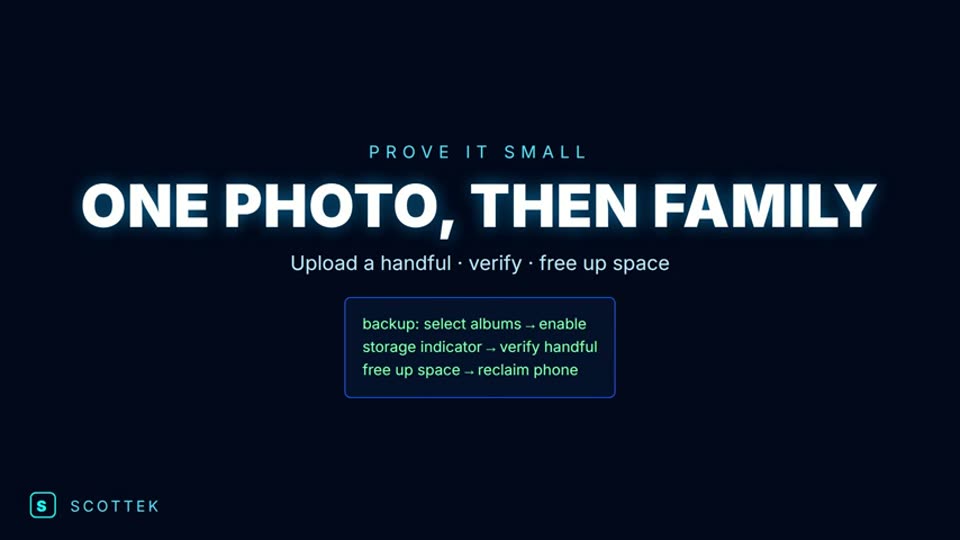
The quick-start guide confirms the same flow, including login at the server endpoint and transfer notes for moving photos off the device. Once backup is on, every new photo lands on local disk automatically, which is the moment the storage subscription becomes optional.
On-server intelligence, faces and search
Everything analytical happens on local hardware, which is the privacy point of the project. Faces are detected and clustered per person, with shared people management keeping family members consistent, and search runs through on-device models so plain words like birthday, beach, or dog just work.
- Memories resurface anniversaries on their own page, including birthday memories in recent releases
- Recent versions also brought real-time video transcoding with quality switching, a non-destructive editor at web and mobile parity, automation workflows for library chores, and integrity checks
- Bulk imports take a while by design, since a decade of photos means faces clustering and embeddings building for hours, and the jobs tab shows that progress
GPU toggles for transcoding and machine learning
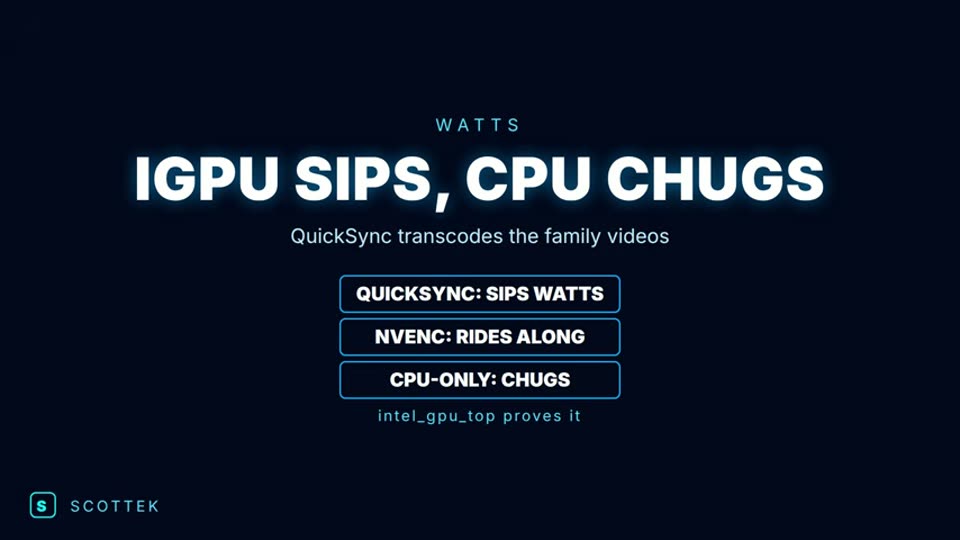
Hardware acceleration is optional and entirely untested for this article, but worth knowing about for a homelab host. The docs describe per-release overlay files for both the server transcoding path and the machine-learning container, with documented backends for Nvidia, Intel, generic Linux, and some Arm boards.
- The general pattern is to fetch the matching overlay next to the compose file, enable the extension block, redeploy, and flip the corresponding switch under administration settings
- Nvidia hosts additionally need the container toolkit so Docker can pass the card through, plus a recent driver
- Nothing already processed needs redoing after enabling acceleration, since every job queued afterward simply rides the faster path
- A sensible order on a single-GPU box is transcoding first for smooth phone playback, then machine-learning acceleration once the library grows large enough that CPU face jobs lag uploads
See the hardware-transcoding docs and the machine-learning acceleration docs for the exact filenames and backend names of the installed release, since those change between versions and are deliberately not quoted here.
Backups and the 3-2-1 reminder
A photo library is the data that would hurt most to lose, so the backup and restore docs recommend a 3-2-1 strategy with copies of both the database and the uploaded files. The two halves matter because automatic database backups hold metadata only, never the photos themselves.
- Automatic database dumps land in
UPLOAD_LOCATION/backupsand default to a daily schedule with recent retention, adjustable under administration database settings - A manual dump can be triggered any time from the job-queues screen by creating a database-dump job
- The upload directory must be backed up separately with snapshots, copies, or an offsite tool of choice, since the docs are blunt that dumps alone are not a restore
- When taking a full backup, stopping the server container keeps database and files in sync, and if that is not possible the recommended order is database first and filesystem second
Restores run from the administration maintenance screen or from the onboarding flow on a fresh install, with the upload folders moved into place first and integrity checks confirming readability before the restore begins.
Upgrades and remote access
Upgrading follows the release notes. The upgrading docs describe updating the version pin if one is set, then refreshing with docker compose pull && docker compose up -d, optionally followed by docker image prune to reclaim disk from obsolete images. Downgrades are not supported, and mobile clients should be updated before the server since the app tolerates the current and prior major version while the server wants its match.
- Read the release notes for breaking changes before pulling, since major versions are where deployment changes land
- Port
2283on the LAN is step one, while remote access belongs behind a reverse proxy with authentication or, better, a VPN tunnel such as Tailscale or WireGuard - Never raw port-forward the library to the internet, and register the admin account before any exposure happens
For homelab context, the Proxmox and remote-access companions fit naturally here. See the TrueNAS 27 upgrade guide for NAS-side storage planning and the Jellyfin 12 self-hosting guide for another service that pairs a home server with phone and TV clients.
Untested steps and limits
- No live Immich host was available for this article, so compose behavior, GPU overlays, import tools, and timings are documented paths only, not measured results
- Release numbers, star counts, and feature availability come from the video and dated research notes and should be rechecked against the current release before deploying
- Remote-access and reverse-proxy specifics are out of scope here and belong to the dedicated networking guides