Install WineDroid on Ubuntu: Run Android Apps, No Emulator

This companion guide follows the video Install WineDroid on Ubuntu: Run Android Apps, No Emulator, a 108-second walkthrough that installs system libraries, adds the Rust toolchain, builds WineDroid from source, and runs an Android calculator APK on Ubuntu with no emulator and no Android system.
This is a companion to that video, not a retest. I did not run this install myself, so every install step below follows the video order and is marked untested where it appears. No Prag research folder exists for this video, so the video transcript is the starting point and the official WineDroid links at the end corroborate the added background, which is kept separate from the video claims. Note the video description discloses its terminal frames are recreations of a real headless test run.
Before you start
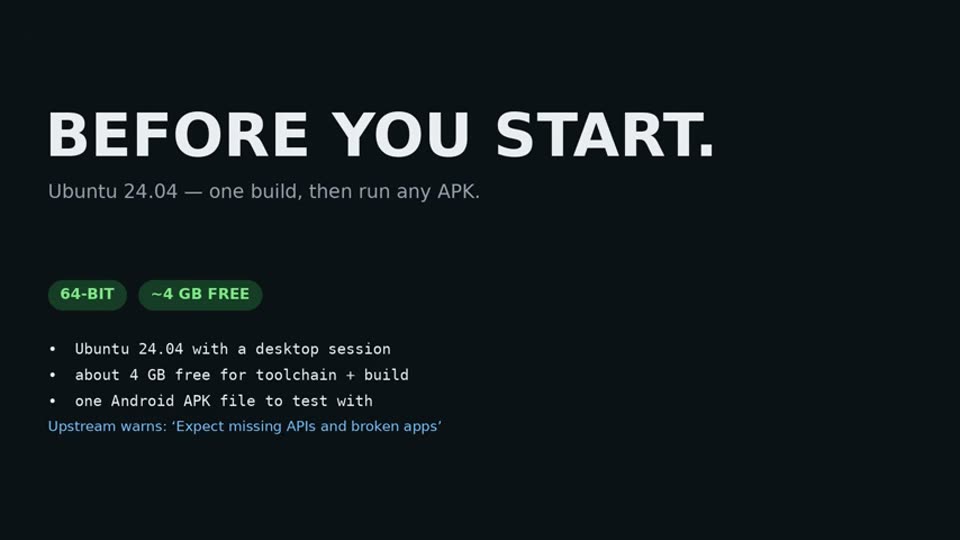
You need 64-bit Ubuntu 24.04 with a desktop session for the app window, about 4 GB free for the toolchain plus the build, and one Android APK to test with. There is no account, no API key, and nothing to pay for. One warning straight from the upstream developers, repeated in the video: compatibility is limited, so expect missing features and broken apps.
Install the system libraries
Untested here: I did not run these commands myself; they follow the video order.
The video refreshes the package list with sudo apt update and installs the C++ build tools plus the font and display libraries the renderer needs. On a fresh install it also pulls in curl, git, and a virtual display (xvfb) for later testing. The full install line from the video description covers curl, git, build-essential, pkg-config, libfreetype-dev, libfontconfig-dev, libclang-dev, xvfb, scrot, and the X11 and OpenGL client libraries.
Install the Rust toolchain
Untested here: I did not run these commands myself; they follow the video order.
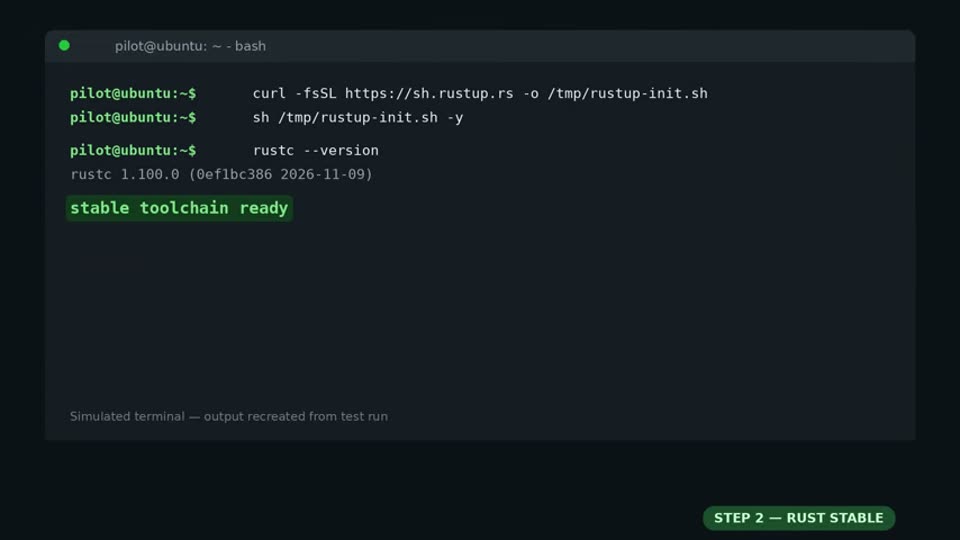
WineDroid is written in Rust and needs a recent compiler, because the version Ubuntu ships is too old according to the video. The video installs the official Rust toolchain with the rustup script from https://sh.rustup.rs, takes the stable default, and confirms the result. The video frame shows rustc 1.100.0 as the installed compiler with a stable toolchain ready marker.
Clone the source
Untested here: I did not run these commands myself; they follow the video order.
There are no release downloads yet, so the video clones the official repository with git clone https://github.com/sohzm/winedroid.git and moves into the new folder with cd winedroid. The WineDroid repository confirms this clone plus build sequence is the documented install path, and the project is licensed under GPL-3.0.
Build it once
Untested here: I did not run this command myself; it follows the video order.
The video builds the release binary with cargo build --release --locked --bin winedroid, using locked dependencies so the result is reproducible. This is the long step: it downloads and compiles the renderer and the just-in-time compiler, and you only do it once. The WineDroid docs describe the same release build as the way to produce the desktop binary.
Run your first app
Untested here: I did not run these commands myself; they follow the video order.
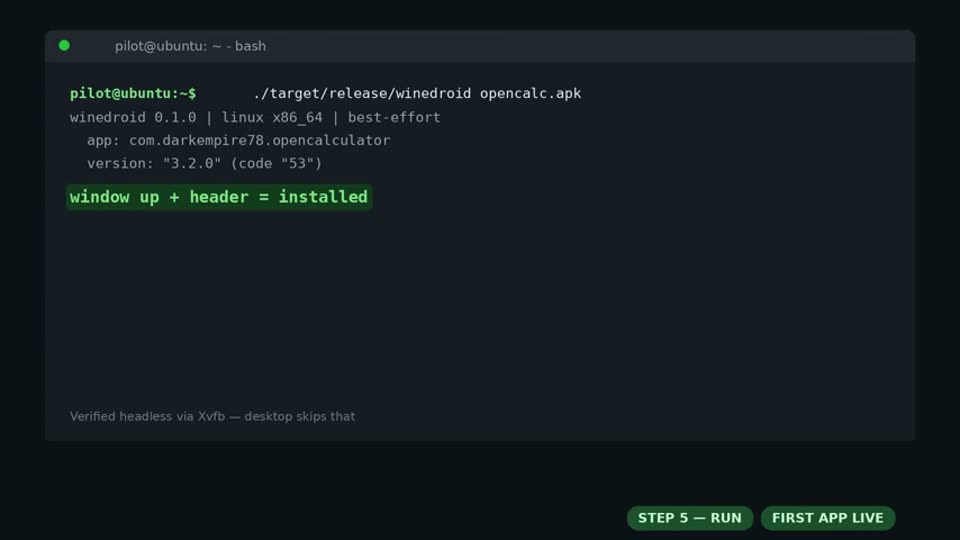
The video fetches a test calculator from F-Droid with curl and points the new binary at it with ./target/release/winedroid opencalc.apk. Success looks like an app window plus a console header naming the runtime and the app. The video frame shows the header reporting runtime 0.1.0 on linux x86_64 with the OpenCalc package at version 3.2.0 and code 53, plus a window-up marker. Headless servers run the same binary under xvfb, exactly as shown in the video, while a normal desktop session needs no virtual display.
Check the app database first
This background comes from the official project pages, not from the video frames. App data lives in ~/.winedroid/default, and the usage guide covers settings and profiling. The WineDroid AppDB rates the video's OpenCalc test app as Bronze, and its reports list what works and what does not per app, so check there before trusting any app. The OpenCalc F-Droid page is the source of the test APK.
If you want full-system Android on Ubuntu instead of this app-by-app layer, the Waydroid Android on Ubuntu guide covers the contrasting container approach. If the Wine name caught your eye, the Wine 11.22 setup guide covers the Windows compatibility layer that inspired this project, and the project docs note it is not affiliated with WineHQ.
Video chapters and links
The video chapters in order:
- 00:00 Android apps, no Android
- 00:13 Before you start
- 00:28 Step 1: system libraries
- 00:42 Step 2: Rust toolchain
- 00:54 Step 3: clone the source
- 01:03 Step 4: build it once
- 01:17 Step 5: run your first app
- 01:37 App database and next steps
The video notes every command in order is pinned in its first comment. Official references: