Run AI Locally: Ollama + Qwen3 on One GPU

This is the companion guide to the video, which walks through installing Ollama, picking a Qwen3 model that fits a single GPU, and wiring local apps and agents to it. Watch the video for the full walkthrough, then use this page as the command and link reference.
All commands below are the documented path from the sources linked inline. They were not executed against a live GPU host for this guide, so steps marked untested here should be confirmed on your own machine.
What Ollama is and what you need
Ollama is a local model runner with a Docker-style workflow. You pull a model, you run it, and Ollama handles the engine, quantization, GPU offload, and serving. Once it is up, a daemon listens on localhost:11434 with two faces: a native API under /api and an OpenAI-compatible API under /v1 covering chat completions, completions, and embeddings. That second face is the practical trick: anything that already talks to OpenAI can talk to your GPU instead by changing a base URL. The project is open source and actively maintained on GitHub.
What you need is one machine with a GPU, one of the three supported operating systems covered below, and enough VRAM for the Qwen3 size you pick. There is no account, no per-token meter, and prompts never leave your machine by default.
Pick the Qwen3 size that fits one GPU
Qwen3 is Alibaba's open-weight model family, released in April 2025 under Apache 2.0, which keeps commercial homelab use simple. It is a ladder rather than a single model: dense sizes from very small up to 32 billion parameters plus mixture-of-experts variants, with hybrid thinking and tool-use support across a very wide set of languages. The Ollama library page for qwen3 lists the runnable tags with their download sizes and context windows.
The listed tags and sizes, verified against the library page, are:
qwen3:0.6bat 523MB with a 40K context windowqwen3:1.7bat 1.4GB with a 40K context windowqwen3:4bat 2.5GB with a 256K context windowqwen3:8bat 5.2GB with a 40K context window and flagged as latestqwen3:14bat 9.3GB with a 40K context windowqwen3:30bat 19GB with a 256K context windowqwen3:32bat 20GB with a 40K context windowqwen3:235bat 142GB with a 256K context window
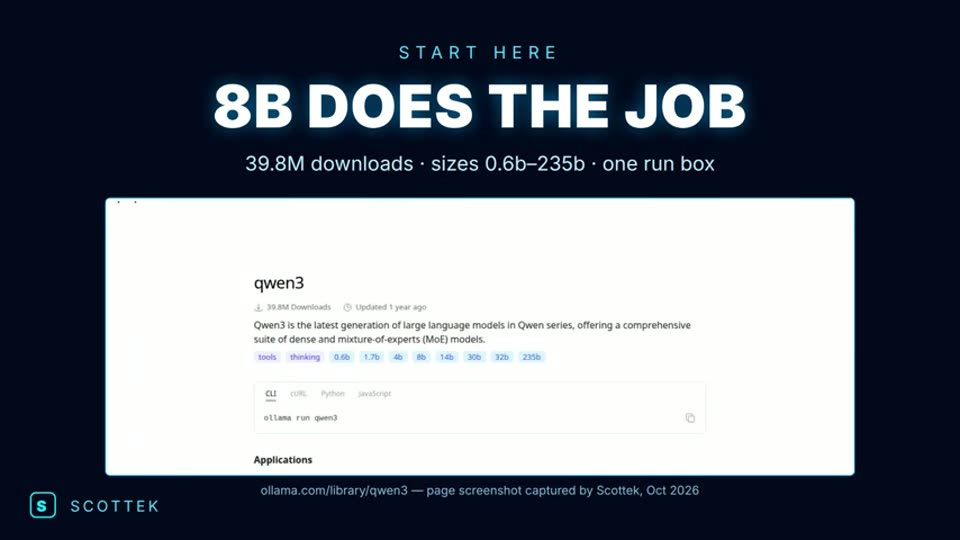
Those sizes are the quantized files Ollama serves, so the practical VRAM ladder reported by third-party sizing guides is roughly: a 6GB card takes the 8B, a 12GB card steps up to the 14B, and a 24GB card earns the 30B MoE or the 32B running tight. Budget about a gigabyte of overhead for the context cache on top of the file size, and more if you raise the context window far. If your card falls short, Ollama spills layers into system RAM, which works but runs much slower. All VRAM expectations in this paragraph are third-party guidance and untested here. Start with the 8B even on a bigger card, since everything you learn transfers upward.
Install Ollama on Linux, Windows, and macOS
On Linux, the documented install from the Ollama Linux docs is one line: curl -fsSL https://ollama.com/install.sh | sh. Verify the daemon answers with ollama -v. NVIDIA owners install CUDA from NVIDIA and confirm with nvidia-smi printing the card, while AMD cards take the extra ROCm package from the Ollama downloads and ARM boxes use the ARM64 tarball. The installer can register a startup service with ExecStart=/usr/bin/ollama serve so the server survives reboots; start it with sudo systemctl start ollama, check it with sudo systemctl status ollama, and read logs with journalctl -e -u ollama. Re-running the install line updates Ollama later, and a release can be pinned with an OLLAMA_VERSION variable in the documented pattern.
On Windows and macOS, download the installer from the Ollama downloads page and follow the setup prompts, per the Ollama quickstart. No Proxmox cluster or container ceremony is needed: this runs on any machine from the install docs with a GPU.
Your first run with Qwen3 and thinking mode
Pull then run, starting with the 8B: ollama pull qwen3:8b followed by ollama run qwen3:8b. Running ollama pull later updates the model with only the difference downloading. Outside the chat session, ollama list shows what you have downloaded, ollama ps shows what is loaded, and ollama show prints a model's details.
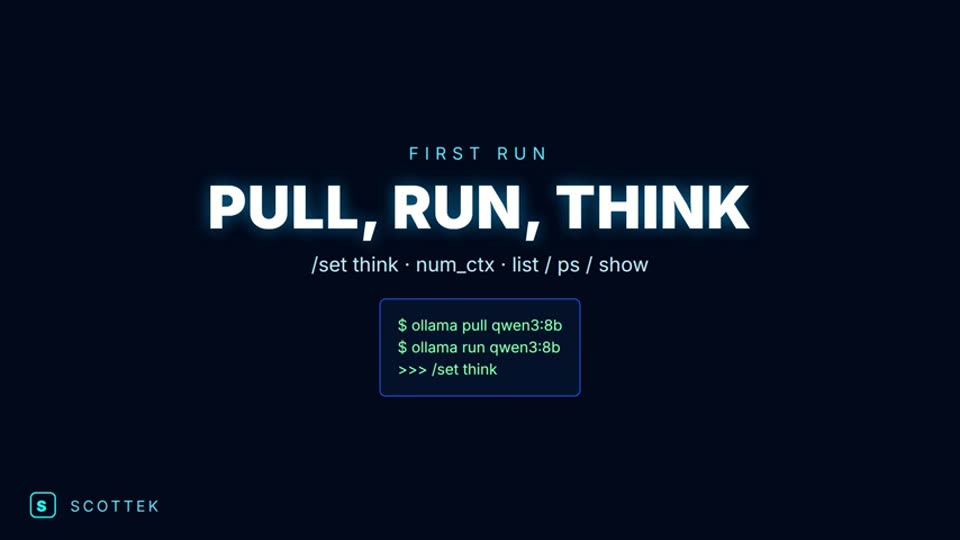
Qwen3's signature is hybrid thinking: step-by-step reasoning for hard problems or instant answers for chat and facts. The video covers toggling this live in the session with /set think for math, code, and logic and /set nothink for quick Q-and-A, plus raising the context window before pasting long documents because the default is small and long prompts can be silently cut. Those session commands are covered in the video and untested here. Exit the session with /bye.
The moment of truth over HTTP is a request against the native endpoint at http://localhost:11434/api/chat with your model name and messages, which proves the server face your tools will use. Two commands in and the pattern is set: pull, run, then build leverage on top.
Make it yours with a Modelfile
A Modelfile is the blueprint for a customized model: a base plus a system prompt and parameters, with no retraining involved. Per the Modelfile reference, the format is one instruction per line starting with FROM, and valid instructions include FROM, PARAMETER, SYSTEM, TEMPLATE, LICENSE, MESSAGE, and CAPABILITY.
A code-reviewer personality looks like this in prose: FROM qwen3:8b, then a SYSTEM block declaring a senior reviewer that checks security first, logic second, and style last, then PARAMETER temperature 0.3 and PARAMETER num_ctx 8192. Save that as a file, build it with ollama create code-reviewer -f ./Modelfile, and chat with it via ollama run code-reviewer. Base weights are reused, so nothing downloads twice.
Two agent facts matter here. The default context size is small (documented as 2048 in the Modelfile reference), so set num_ctx for documents and repos. And the OpenAI-compatible /v1 API has no way to set context per request, which makes the Modelfile the way to give coding tools the big window they need. A keep_alive value such as thirty minutes stops the model unloading between frequent calls.
Point apps and agents at your GPU
Any OpenAI client becomes local with three edits, per the OpenAI compatibility docs: set the base URL to http://localhost:11434/v1/, set the API key to literally anything (the string ollama is convention and is ignored locally), and set the model name to your local tag. The same page documents /v1/chat/completions, /v1/responses, and vision variants against the local server.
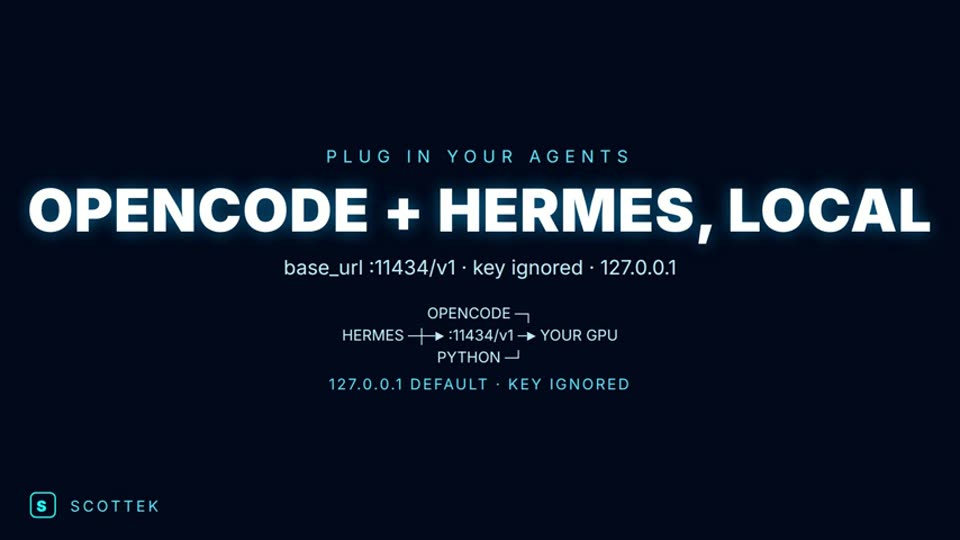
For this channel's agent stack, the library page goes further with one-click launches: ollama launch opencode --model qwen3 and ollama launch hermes --model qwen3, alongside Claude and OpenClaw variants. To add a chat UI instead, Open WebUI takes Ollama as an OpenAI-type provider with base URL http://localhost:11434/v1 and any non-empty API key, with models auto-discovered. That Open WebUI path is docs-sourced and untested here.
Defaults bind loopback only, which is what you want: keys and prompts never leave the machine. If you must serve the LAN, set OLLAMA_HOST to 0.0.0.0:11434 and put an authenticated reverse proxy in front. An open inference port spends your electricity on anyone else's tokens, so keep it private by default and share only by decision.
Honest limits and next steps
The honest limits, in brief:
- Quantization buys the small VRAM footprint and long-context recall is what gives first, so pushing an 8B model to very large contexts needs materially more cache memory
- The small default context truncates silently, so always set
num_ctxfor documents and repos - The ceiling is real: the 235B needs datacenter-class memory, and newer API-only releases with no open weights cannot be pulled locally at all, so treat any guide telling you to pull them as a closed tab
- Single-GPU lore ends near the 32B class, and past that means multi-GPU or the cloud
None of that dents the 8B-to-14B sweet spot, where a homelab GPU stops being a gaming card and starts being infrastructure. The rule fits on an index card: install Ollama with the one-liner, pull qwen3:8b, think for hard problems and no-think for fast ones, pin context in a Modelfile, and point your agents at localhost.
Keep going with the related guides: Ollama 0.40: Terminal AI Judges + MLX Speed for what is new in the agent workflow, and Fine-Tune Any LLM on 6GB VRAM: Unsloth QLoRA Guide for teaching your Qwen3 your own data once a Modelfile personality proves itself.