Hermes Agent By Nous Research: A Installation and Configuration Guide.
This is the companion guide to the video, which installs Hermes Agent, connects a model, configures tools and memory, and tests the result in a controlled workspace. Watch the video for the full walkthrough, then use this page as the command and link reference.
Sentences marked In the video describe what the captions and description show. Everything else is added from the official docs linked inline. Nothing below was executed against a live host for this guide, so steps marked untested here should be confirmed on your own machine.
What Hermes Agent is, and what it is not
In the video, Hermes is presented as an open-source agent application, not a language model. The model is the reasoning engine, Hermes is the coordinator, and the tools are its hands: the model requests an action, Hermes passes it to a tool, and the result feeds back into the conversation so the system can read files, run commands, use a browser, and work through multiple steps. The project repository is NousResearch/hermes-agent, and the video states it uses the MIT license.
The distinctive idea is continuity. In the video, Hermes combines persistent memory, searchable prior sessions, and reusable skills with a learning loop that turns experience into procedures. A skill is an instruction document the agent loads when it needs that workflow, memory captures facts and preferences, and session history preserves the conversation. Per the official docs, the loop includes agent-curated memory with periodic nudges, autonomous skill creation, and cross-session recall. Improving a skill changes stored instructions and knowledge, not model weights, and the docs describe bounded memory files rather than retraining.
The trade-offs in the video are stated plainly. Reliability depends on the model and its tool-calling support, long tasks consume context and paid tokens, memory can preserve a mistake, third-party skills and web pages can carry untrusted instructions, and an agent can confidently describe work it did not complete. Treat its claims as hypotheses until you inspect the files, tests, or browser result, and start with bounded tasks before granting autonomy.
Install it on Linux, WSL2, Windows, or macOS
In the video, the main walkthrough uses an Ubuntu-style Linux terminal, with Windows users following the same Linux commands inside WSL2 and native Windows shown as a separate branch. The installation guide documents both paths. For Linux, macOS, or WSL2 the command is curl -fsSL https://hermes-agent.nousresearch.com/install.sh | bash, and for native Windows PowerShell it is iex (irm https://hermes-agent.nousresearch.com/install.ps1).
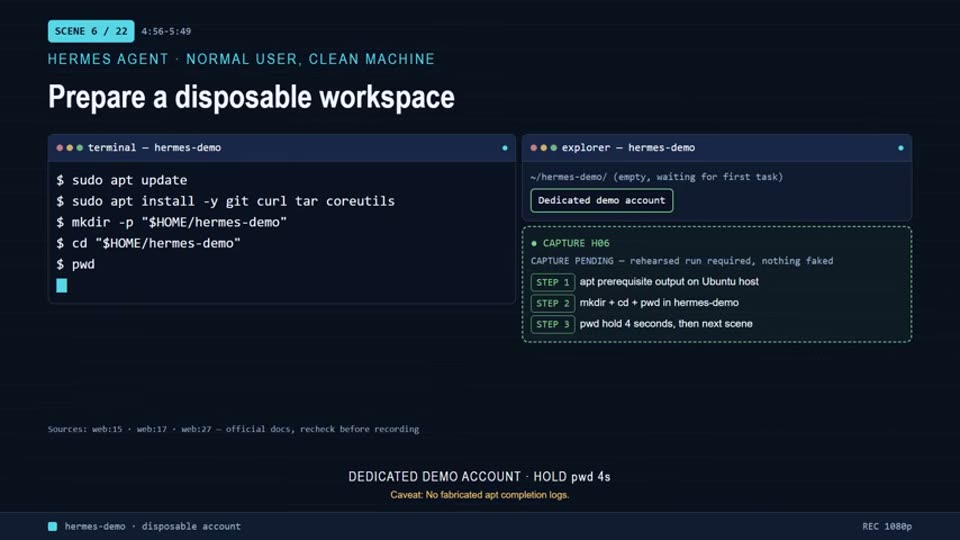
In the video, the presenter does not pipe the installer straight into a shell. The script is downloaded first, inspected, and then run, and the viewer is told to use a normal user account rather than a root shell. That caution is sensible: reading a script is not a cryptographic guarantee, so stay on the official domain and verify the source when your threat model requires it. The documented prerequisites for the script route are Git, curl, tar, and SHA-256 utilities, and the docs describe a managed Python 3.14 runtime with pinned tools, so there is no need to replace the Python or Node installations used by other projects. Desktop packages from the official site are another supported route, and the macOS package targets Apple Silicon only. After installing, open a fresh shell if the launcher is not found and run hermes doctor to diagnose what is missing. Later updates go through hermes update for source installs, while desktop bundles and other packaged installs keep their own update mechanism, all untested here.
Give it one model: hosted first, local second
Hermes needs at least one inference provider, and in the video the advice is to prove the agent works with a hosted provider before troubleshooting local inference. The fastest documented path is hermes setup --portal, which performs one OAuth login covering a model plus the bundled web search, image, speech, and browser tools per the docs front page. For anything else, run hermes model to pick a provider and model interactively, or hermes setup for the full wizard. The providers page lists hosted options including OpenRouter, direct providers, and subscription logins alongside self-hosted endpoints such as Ollama, vLLM, SGLang, llama.cpp, and LM Studio.
In the video, the presenter declines to rank models, noting there is no verified usage leaderboard in the video sources, and treats the named cloud and local options as a short list to evaluate rather than a universal ranking. That restraint is carried into this guide: provider model names and availability change, so choose from the current picker, confirm you actually have access, set a spending limit where the provider offers one, and do not assume a chat subscription includes every API endpoint. Start with one primary model and leave routing and fallback policies for later.
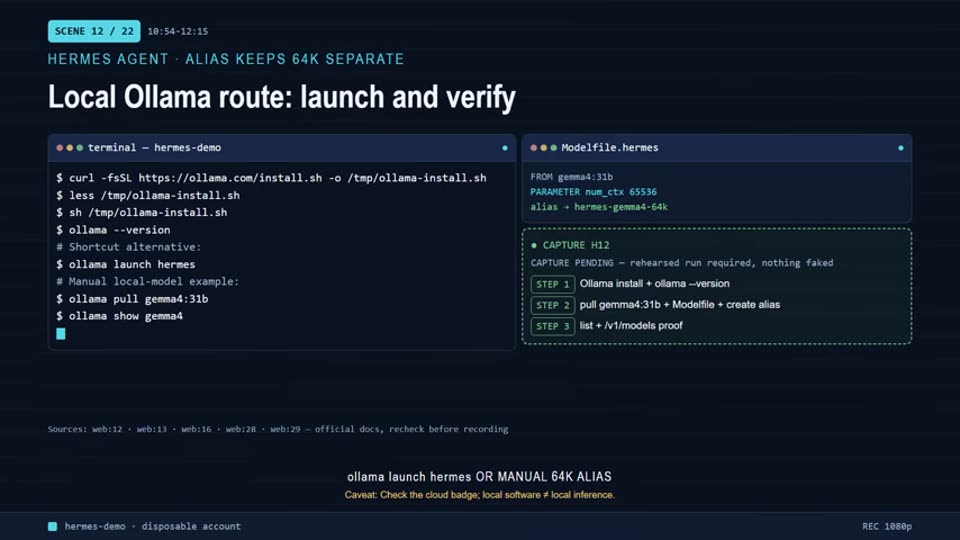
For local inference, in the video the manual demonstration points Hermes at an Ollama server through its OpenAI-compatible URL, leaving the API key blank for the normal unauthenticated loopback setup and selecting the exact model alias the server exposes. The endpoint must include /v1, the model name must match what the server exposes, and localhost always means the machine running the client, so a model on another server needs a private authenticated network path or a secure tunnel rather than an exposed unauthenticated port. The video also warns that a runtime default context can sit below the model's advertised maximum and that weights plus long-context cache both count toward memory pressure, so confirm the exact downloaded model and its configured runtime window instead of assuming the tutorial example fits every machine. All local-endpoint steps in this paragraph are video-described and untested here. If you are new to the local runner itself, the companion guide Run AI Locally: Ollama + Qwen3 on One GPU covers the Ollama side.
Configure tools, approvals, and memory
In the video, the first tool pass is deliberately minimal: enable only what the task needs, starting a development demo with file operations and terminal access while web search, browser automation, delegation, messaging, and scheduling wait. Run hermes tools to configure the enabled set, and inspect the terminal backend choice. Local execution runs commands on the host with your account permissions, while the Docker backend runs them in a Hermes-managed container that still needs controlled mounts, credentials, and network access, with Docker installed and running. Changing a YAML value does not install Docker. Private inference and safe execution are separate systems: Hermes can call a cloud model while executing locally, or a local model while executing inside a container.
Approval policy in the video uses manual approval for commands the system classifies as dangerous while denying those commands in unattended contexts, and the presenter notes this is not an ask-before-every-action setting. Container backends may skip that approval layer because the container is treated as the boundary, so restrict mounts and secrets accordingly: never mount an entire home directory or the Docker socket into an experimental agent environment. A prompt instruction to stay in one folder is guidance, not an operating-system sandbox, so keep backups, use version control, and review actual changes. The bypass mode has no place in a beginner walkthrough.
Ordinary settings live in ~/.hermes/config.yaml and secrets belong in ~/.hermes/.env, managed with hermes config get, hermes config set, and the configuration reference. Uppercase environment-style names route to .env, while dotted settings go to config.yaml. SOUL.md holds the agent identity and operating style and is a reasonable place to ask for direct answers, explicit uncertainty, and evidence before claiming success, though no identity file can enforce security. Memory persists across sessions in MEMORY.md for environment facts and USER.md for user preferences under ~/.hermes/memories/, written by the agent's memory tool rather than by its chat text, so verify a saved preference actually landed in the file. If a minimal setup left memory and skills disabled, enable them deliberately instead of assuming they are always on.
Prove the loop, then extend to gateway and schedule
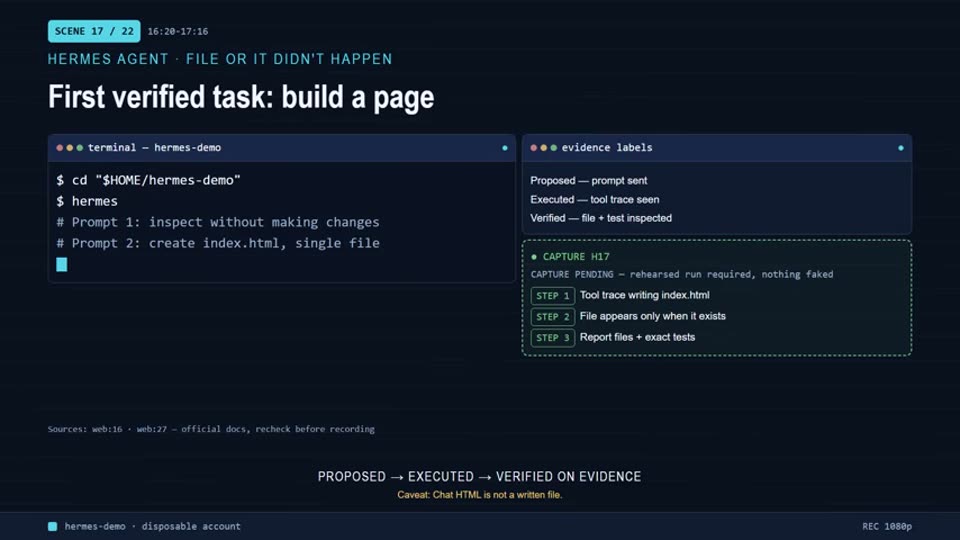
In the video, the proof is a bounded workspace task. First the agent is asked to inspect the demo directory without making changes, confirming it uses an actual tool rather than guessing. Then it is given one self-contained creation task, a landing page with no external assets and no dependencies, keeping all outputs inside the workspace and reporting the file it created plus exactly what it tested. A tool trace showing a real file write is the bar: HTML printed only in chat is not the same as a written file. The artifact is then verified independently by confirming the file exists, serving the workspace on loopback, opening it in a browser, checking the heading, resizing the viewport, and exercising its toggle. If something breaks, the observed failure goes back to the agent for a specific repair and retest rather than a vague request to improve. The session is ended normally and resumed afterward to confirm continuity, with remembered claims still checked against observable files. Session resume uses hermes --resume per the docs, and the video's resume step is untested here.
Only after the CLI loop works does the video add remote access. The messaging gateway connects platforms such as Telegram, Discord, and Slack through hermes gateway setup, with hermes gateway status and hermes gateway start for operating the background process. Create the platform bot or app through its current official procedure, enter credentials privately, restrict access to your own account with allow lists or pairing, and start with one harmless read-only request. Scheduling comes after that, beginning with a bounded report such as a daily summary of the demo workspace with no file changes and no external sending beyond the approved destination, reviewing the schedule, time zone, and delivery target before enabling it. When something fails, the video isolates by layer: launcher problems mean reloading the shell and inspecting the path, chat failures mean rechecking provider authentication and model selection, silent local models mean verifying the server endpoint first, acting-but-not-chatting means checking tool calling and the enabled toolset, and ignored bot messages mean inspecting status, credentials, and authorization rather than opening access to everyone. Gateway and scheduling steps here are docs-sourced and untested here.
Honest limits and next steps
A finished setup, in the video, has a verified provider, an appropriate context window, intentionally selected tools, an understood execution boundary, and one workspace task checked in a browser. The recommended next milestone is a repeatable low-risk workflow with explicit pass and fail criteria rather than wider autonomy. The value is the combination of tools, continuity, and reusable procedures into work that can be inspected and improved.
Keep going with the related guides: Run AI Locally: Ollama + Qwen3 on One GPU for the local model server behind the tutorial's manual endpoint, and Ollama 0.40: Terminal AI Judges + MLX Speed for what is new in the local-agent workflow.